What you need before checking
You need a terminal: Terminal on macOS, a terminal application on Linux, or PowerShell or Command Prompt on Windows. You do not need to create a project or open a particular folder. The commands below work wherever your terminal is currently located, provided Node.js and npm are available on your system’s command path.
Node.js runs JavaScript outside a browser. npm is a package manager commonly installed alongside Node.js. They have separate version numbers, so do not expect the numbers to match. If you have not installed Node.js yet, these commands can still help you confirm that the terminal cannot find it.
Run the version commands
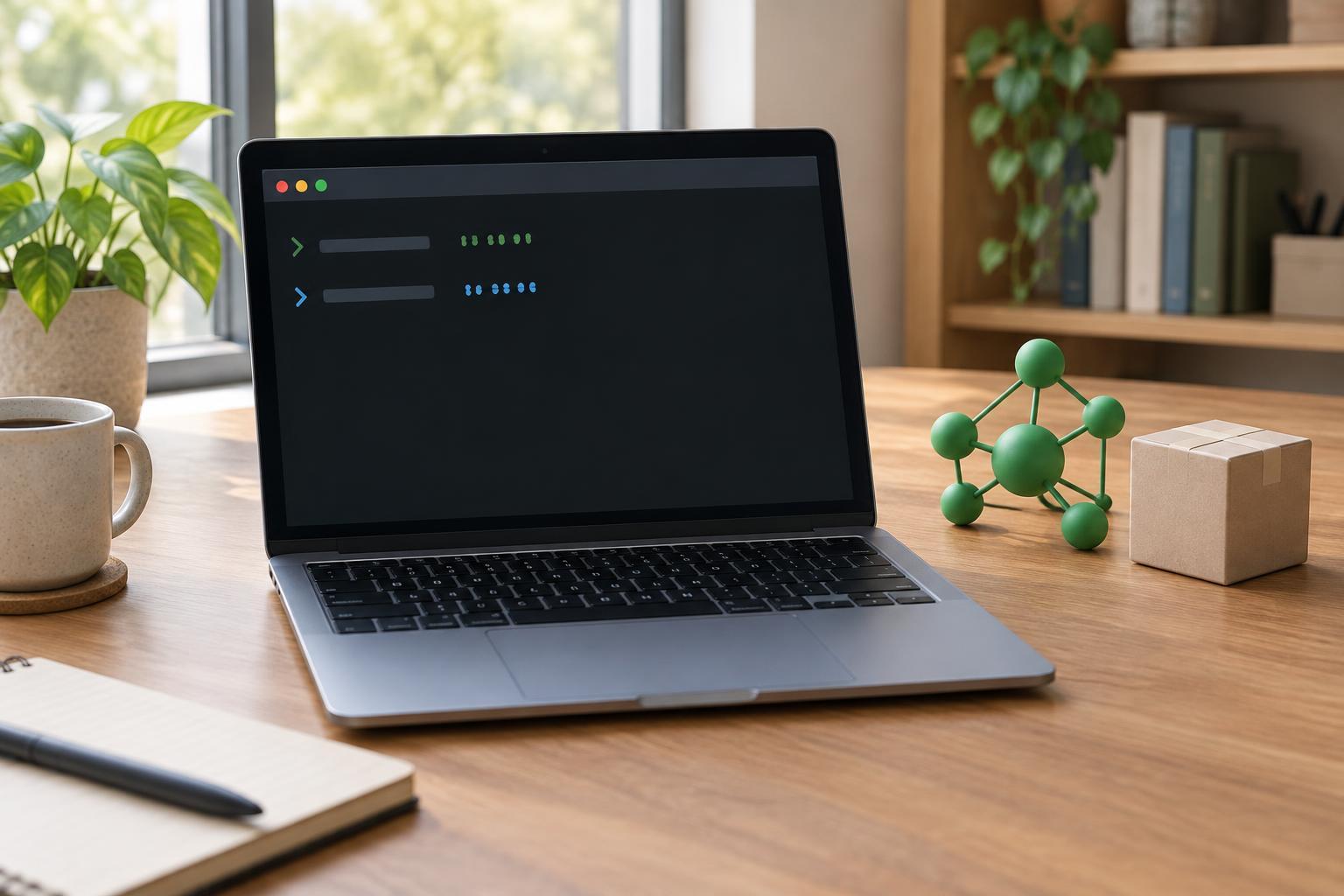
Open your terminal, type node --version, and press Enter. If Node.js is available, the terminal prints a version number, often beginning with the letter v. The shorter command node -v does the same thing. Next, type npm --version and press Enter. npm should print its own version number; npm -v is the shorter equivalent.
Run the commands separately so it is clear which result belongs to which tool. A successful result tells you which version that terminal will use right now. It does not, by itself, tell you whether the version is suitable for a particular project. For that, check the project’s documentation or any version requirements recorded in its files.
If a command is not found
An error such as “command not found” or “not recognized” means the terminal cannot locate that command. It does not always mean the software is absent. If you recently installed Node.js, close the terminal, open a new one, and try again. A terminal that was already open may not have picked up a change to your command path.
If node works but npm does not, check how Node.js was installed. npm is commonly included with Node.js installations, but installation methods and configurations differ. On macOS or Linux, command -v node and command -v npm can show where the terminal finds each command. On Windows, where node and where npm can serve a similar purpose in Command Prompt. In PowerShell, Get-Command node and Get-Command npm show how PowerShell resolves them.
PowerShell may sometimes find npm but block its script launcher. If the error mentions script execution, try npm.cmd --version to check the installed npm version without changing your execution policy. If you are using a managed computer, ask its administrator before changing system settings.
Why the version may be unexpected
You may have more than one Node.js installation. A version manager can also switch versions between projects or terminal sessions. In either case, the version command reports the executable selected by your current environment, not every version installed on the computer. If two terminals give different results, compare where each one finds node and npm, and check whether a version manager is active.
When following a project tutorial, check for a stated Node.js requirement before installing dependencies. If the project uses a version manager, use its documented method to select the intended version, then run node --version and npm --version again in the same terminal. Avoid changing or removing installations merely because their version numbers differ; that difference is normal.
A quick check before starting a project
The basic check is simple: open the terminal you plan to use for the project, run node --version, then run npm --version. Confirm that both commands return version numbers and that your Node.js version meets any requirements stated by the project. Repeat the check after switching versions or opening a different terminal environment.
If both commands work but a project still fails, the version numbers are only one clue. Read the project’s error message and setup instructions before changing tools. The failure might involve a missing dependency, a project-specific configuration, or a command run from the wrong folder rather than your Node.js or npm installation.