First, find out whether the handler runs
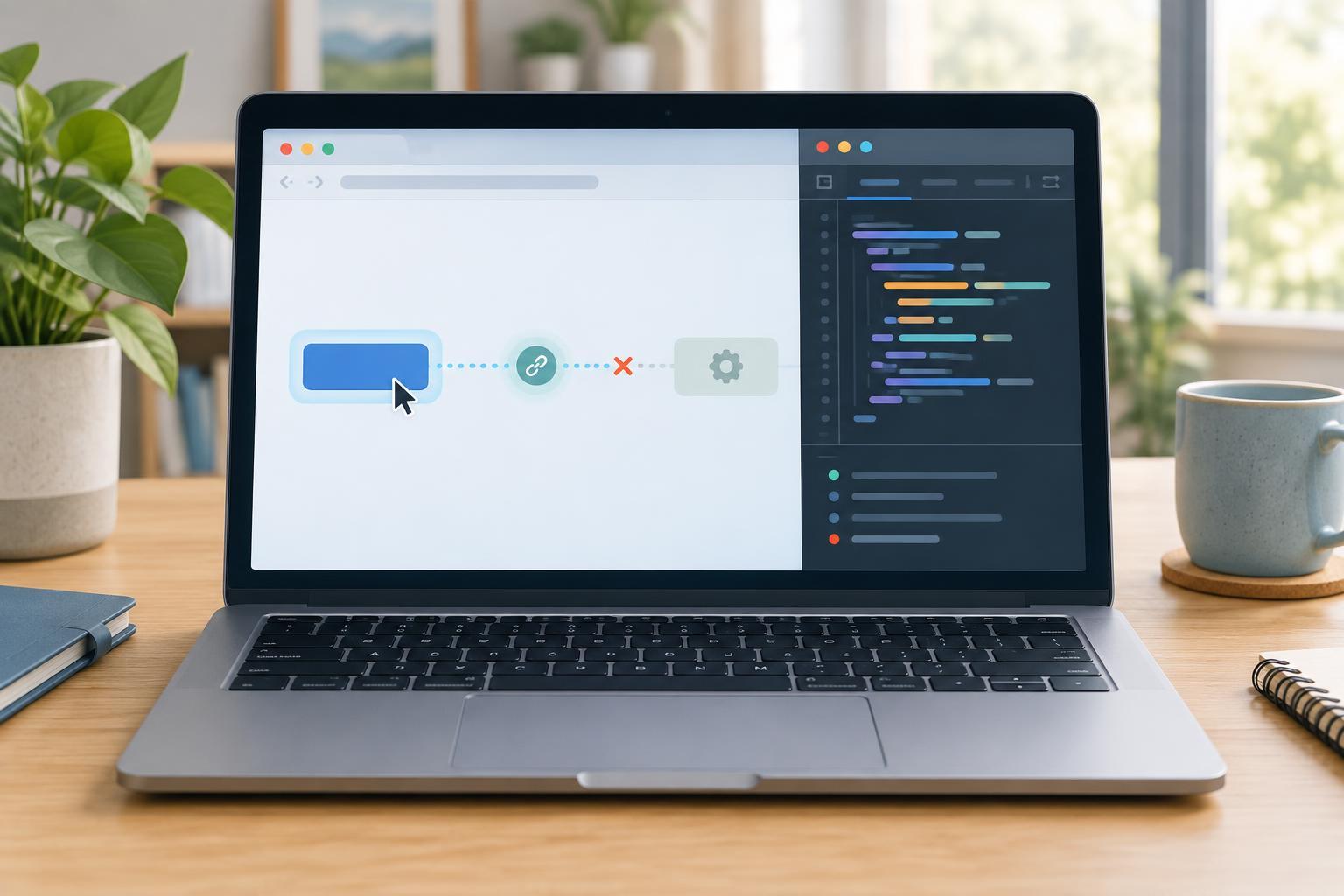
A button that appears to do nothing can have several different problems. The click may never reach the element, the listener may never be attached, or the listener may run and fail before producing a visible result. Separating those possibilities is faster than changing code at random.
You need a browser with developer tools and support for ES2015 JavaScript, including const and arrow functions. No library or package is required for the examples here. Open the page, open the browser’s Console, and reload. Look for errors that appear before you click: an earlier JavaScript error may have stopped the code that attaches the listener. Then put a log statement at the very start of your handler, such as console.log("Click handler started");. Click once and check whether the message appears.
If the message appears, the handler does run. Investigate the code after the log statement and any errors the Console reports. If it does not appear, focus on how the listener is attached and whether the intended element receives the click.
Check the element and the selector
A listener can only be attached to the element your code finds. Suppose the intended button has the ID saveButton. Enter document.querySelector("#saveButton") in the Console. If the result is null, the browser cannot find that element at that moment. Check the spelling and capitalization of the ID, make sure you used # for an ID selector, and confirm that you are inspecting the correct page or frame.
Next, compare the selected element with the button you actually click. In the Console, you can assign const button = document.querySelector("#saveButton"); and then inspect button. A selector that matches a different element may attach the listener successfully while leaving the intended button unresponsive. IDs should be unique within a document; if you need listeners on several buttons, select them as a group and attach a listener to each one.
If the selector is correct but returns null during page startup, timing may be the issue. A script can execute before the browser has parsed a later button. Attach the listener after the element exists. One option is to run your setup when the document is ready: document.addEventListener("DOMContentLoaded", () => { const button = document.querySelector("#saveButton"); button.addEventListener("click", () => console.log("Clicked")); });. If button could be absent on some pages, check it before calling addEventListener. Placing a script later in the document or using a deferred script can also address timing, but verify when that particular script executes rather than assuming.
Confirm that the click reaches the right place
If setup runs without errors and the listener is attached, inspect the button in the browser’s Elements panel. A disabled form control will not respond to ordinary user clicks. Another element may cover the button, even if that covering element is transparent. The inspector can help you see which element is under the pointer and whether layout or pointer-events styles affect the target.
Try a temporary listener directly in the Console: document.querySelector("#saveButton").addEventListener("click", () => console.log("Temporary click"));. If it logs when you click, the element can receive clicks, so revisit your application’s setup code. If it does not, check for a disabled state, an overlapping element, or a click on a different element than the one you selected. Some developer tools also let you inspect an element’s registered event listeners; use that view as an additional clue, not a substitute for testing the click.
If your code listens on a parent element, inspect the event target. A click on a child can reach the parent through event propagation, but code that checks for an exact target may reject it. Likewise, other code can stop propagation before a parent listener receives the event. Log the event target and the element that owns the listener to see which assumption is wrong.
If it runs, follow the effect
Once the first log appears, move your attention inside the handler. Add a second log after the operation you expect to change the page. If the first appears but the second does not, an error or an early return may interrupt the code. Read the Console error and inspect the values involved rather than adding more listeners.
A form button may submit the form and navigate away, making a brief log or page change easy to miss. Check whether the button belongs to a form and whether submission is intended. If you are handling submission in JavaScript, listen for the submit event and use preventDefault() only when you intend to replace the form’s normal behavior. Finally, verify that the handler changes the element you meant to change; a successful click listener does not guarantee that its visible result is correct.
When you find the cause, remove temporary logs and Console-added listeners, reload, and test again. That final reload matters: changes made only in developer tools do not repair the page’s source code.