What you need before you start
You need a page you can open in a desktop browser and a recent version of Chrome or Firefox. Both include Developer Tools, so no extension is required. Their panel names and layouts can differ slightly between versions. If you are working on a project, open its local page using the method that project normally requires; a page opened directly from a file can also work for basic CSS inspection.
Browser Developer Tools are useful for answering a narrow question: “Why does this element look this way?” They let you examine the page as the browser currently displays it. Changes made in the tools are experiments, not edits to your source files. A reload will usually discard them.
Select the element you want to change
Open your page, right-click an element such as a heading or button, and choose Inspect. The browser opens its inspection panel and highlights the corresponding element in the page structure. If the highlight covers more than you expected, move through nearby elements in the structure until it matches the part you meant to inspect.
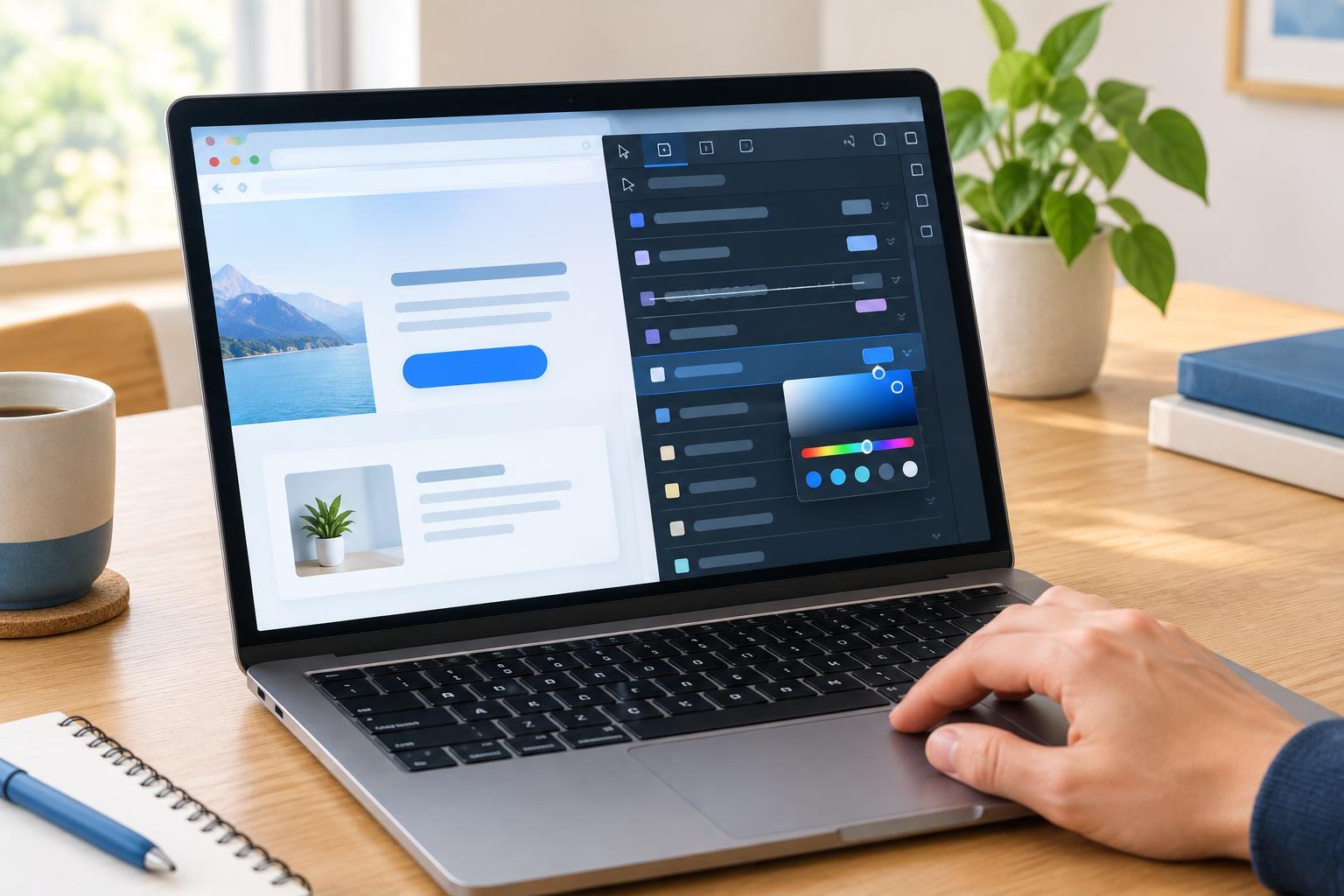
Look for a Styles or Rules pane beside the page structure. It lists CSS declarations that may affect the selected element. Try selecting a heading and finding a rule for its color, font size, or margin. You can also use the element-picker icon in Developer Tools, then point at a visible part of the page to select it. This is often easier than searching through nested elements by hand.
Make a temporary CSS experiment
In the Styles or Rules pane, click an editable value and replace it. For example, try changing a heading’s color to rebeccapurple or its font-size to 24px. Press Enter and watch the page update. You can usually uncheck a declaration to compare the page with and without it, then check it again to restore it. These small experiments help you identify which declaration controls the result before you change your files.
If you do not find an existing declaration to edit, many browsers offer an empty area within a rule where you can add one. Type a property such as margin-top, give it a value such as 16px, and observe the effect. Change one property at a time when possible. If you alter several values together, it becomes harder to tell which one fixed the problem.
Treat the browser result as a draft. Once you find a useful change, locate the matching rule in your project’s CSS, make the edit there, save the file, and reload the page. Check that the result still looks right. If it disappears after a reload, confirm that you saved the correct file and that the page loads that stylesheet.
Understand rules that do not appear to work
A declaration shown with a line through it has generally been overridden by another declaration for that element. Look at the other rules in the pane before adding a more forceful selector. The order of rules, how specific their selectors are, and styles written directly on an element can affect which value wins. Adding !important may appear to solve the immediate problem, but it can make later changes harder to understand.
If you cannot find the value responsible for a visible result, check the Computed pane. It shows the final value the browser is using for a property. A child element may also inherit properties, such as color, from a parent. For spacing problems, inspect both the element and its surrounding container: the space may come from a parent’s padding or a neighboring element’s margin.
Developer Tools show you the current rendered page, but they do not replace checking your source and testing different screen sizes. After moving an experimental change into your project, resize the browser and review any nearby content it affects. A heading that looks better at one width may wrap awkwardly at another. The most reliable habit is to inspect, change one thing, save the source edit, and verify the result after reloading.