What a breakpoint does
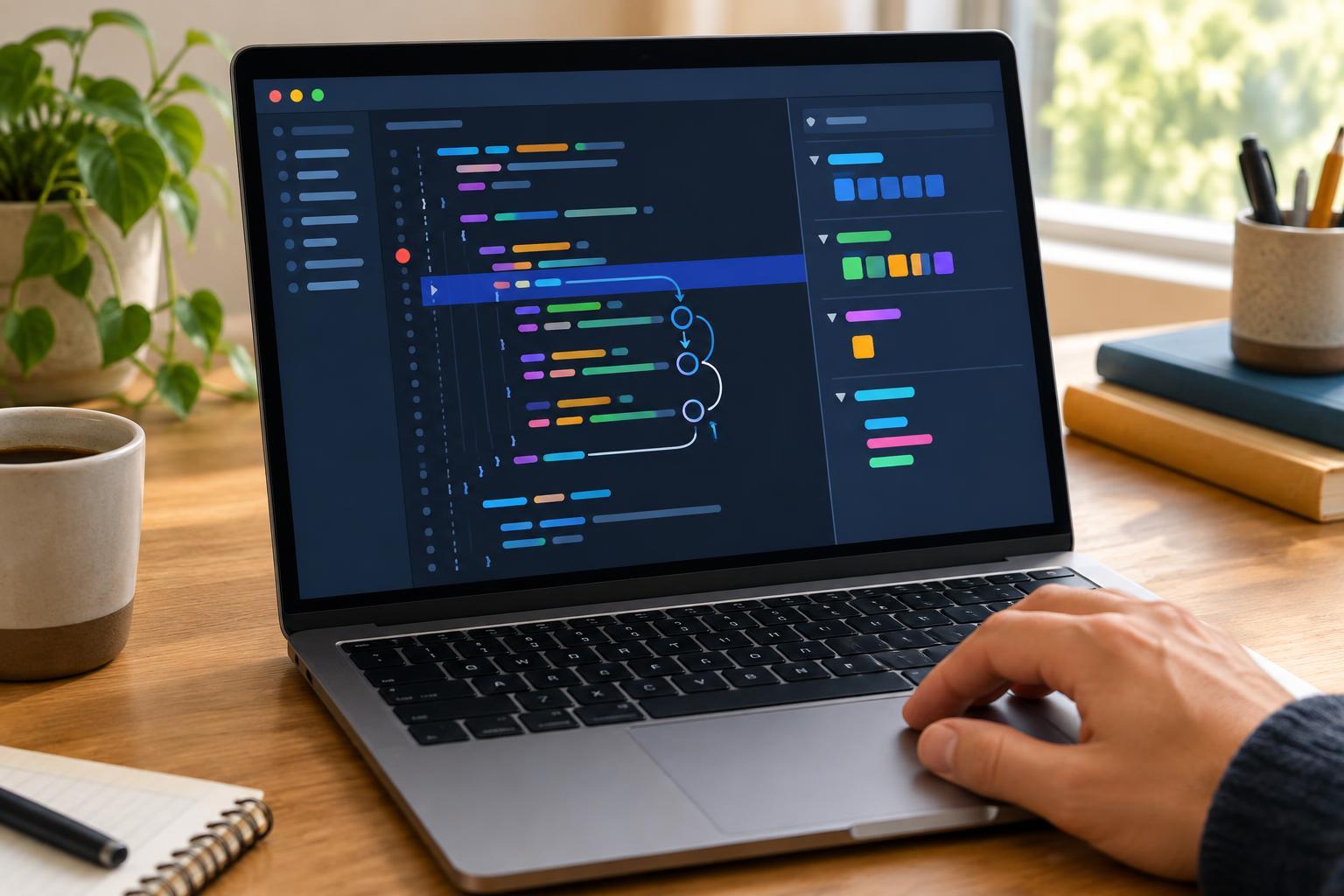
A breakpoint tells a debugger to pause a program at a chosen line. While the program is paused, you can see which line will run next, examine variables, and decide whether to move one line at a time or let the program continue. This is often more useful than adding several print statements: you can inspect the program at the moment a value becomes surprising.
To follow this exercise, you need a desktop version of Chrome with its built-in Developer Tools. No library or separate installation is required. The labels and placement of Developer Tools controls may vary by browser version. We will use a JavaScript snippet so you do not need to create a web page.
Set up a small bug you can reproduce
Open Developer Tools, go to Sources, and find Snippets. Create a new snippet named totals.js and enter the following JavaScript. Run the snippet once using the control offered by Developer Tools. If you cannot find Snippets, look for it in the Sources panel’s navigation menu.
function sumPrices(prices) { let total = 0; for (let i = 0; i < prices.length - 1; i++) { total += prices[i]; } return total; } const result = sumPrices([4, 5, 3]); console.log(result);
The three prices add up to 12, but the Console displays 9. Rather than changing the loop immediately, use the debugger to establish what it actually does. Click the line number beside total += prices[i]; in the snippet. A marker should show that a breakpoint is set. Run the snippet again. Execution should pause before that line runs, so the value you see for total is its value before the addition.
Step through the loop and inspect its values
While paused, find the Scope panel. It shows variables available at the current point in the program. On the first stop at the addition, i is 0, prices[i] is 4, and total is 0. Depending on your Developer Tools layout, you may also be able to hover over a variable in the code to see its value. If a panel is collapsed, expand it rather than assuming the variable is unavailable.
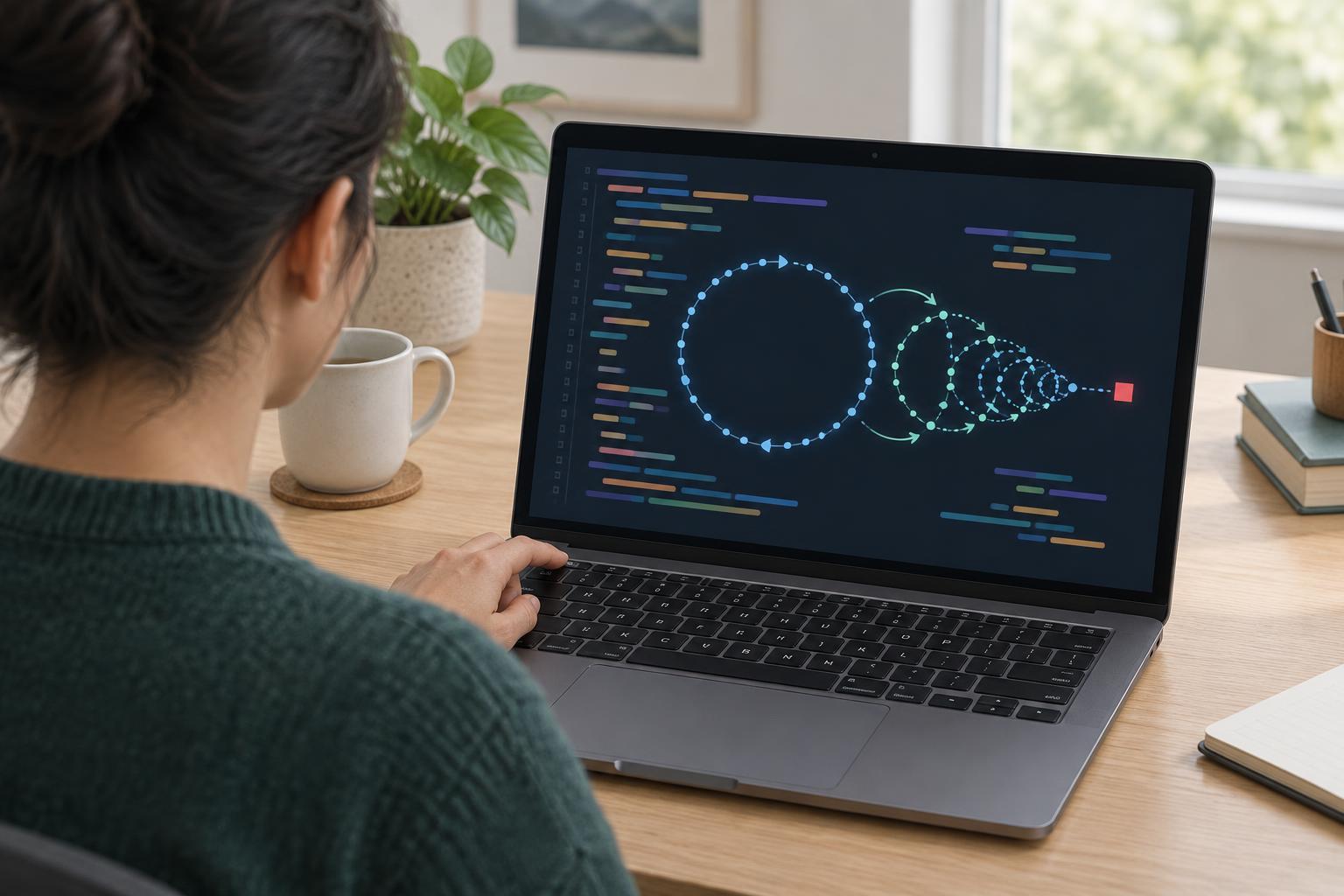
Choose Step over to execute the current line without entering a function called on that line. After the addition, total should be 4. Use Continue to reach the same breakpoint on the next loop iteration. Now i is 1 and total is 4; stepping over the addition makes total 9. Continue once more. Instead of stopping with i equal to 2, the program finishes and prints 9. That missing pause is the important clue: the loop never reaches the third price.
Step into and Step out become helpful when functions call other functions. Step into follows a function call so you can inspect its internal lines. Step out runs until the current function returns and pauses back in its caller. In this example, you could set a breakpoint on const result = sumPrices([4, 5, 3]);, pause there, and use Step into to enter sumPrices. Use the Call Stack panel to see how execution reached the current function. Step over is usually simpler when you trust a called function and want to stay in the current one.
Explain the cause, fix it, and check again
The loop condition is i < prices.length - 1. Since prices.length is 3, the condition allows i to be 0 or 1, but not 2. That is why the last price is omitted. Change the condition to i < prices.length, then run the snippet again. The Console should display 12. You can leave the breakpoint in place for another run to confirm that the addition now executes with i equal to 2 and total equal to 9 before the final addition.
When a program is harder to follow, inspect one question at a time: Which line ran? What were its inputs? What changed afterward? A Watch expression can keep a value such as prices[i] visible as you step, but remember that an expression may be unavailable outside the scope where its variables exist. Avoid using a watch expression that changes program state, such as one that increments a variable.
Finally, remove or disable breakpoints you no longer need. A useful debugging session ends with more than a working result: you should be able to explain why the old code failed and why the changed code handles the case that exposed it.