What you will build
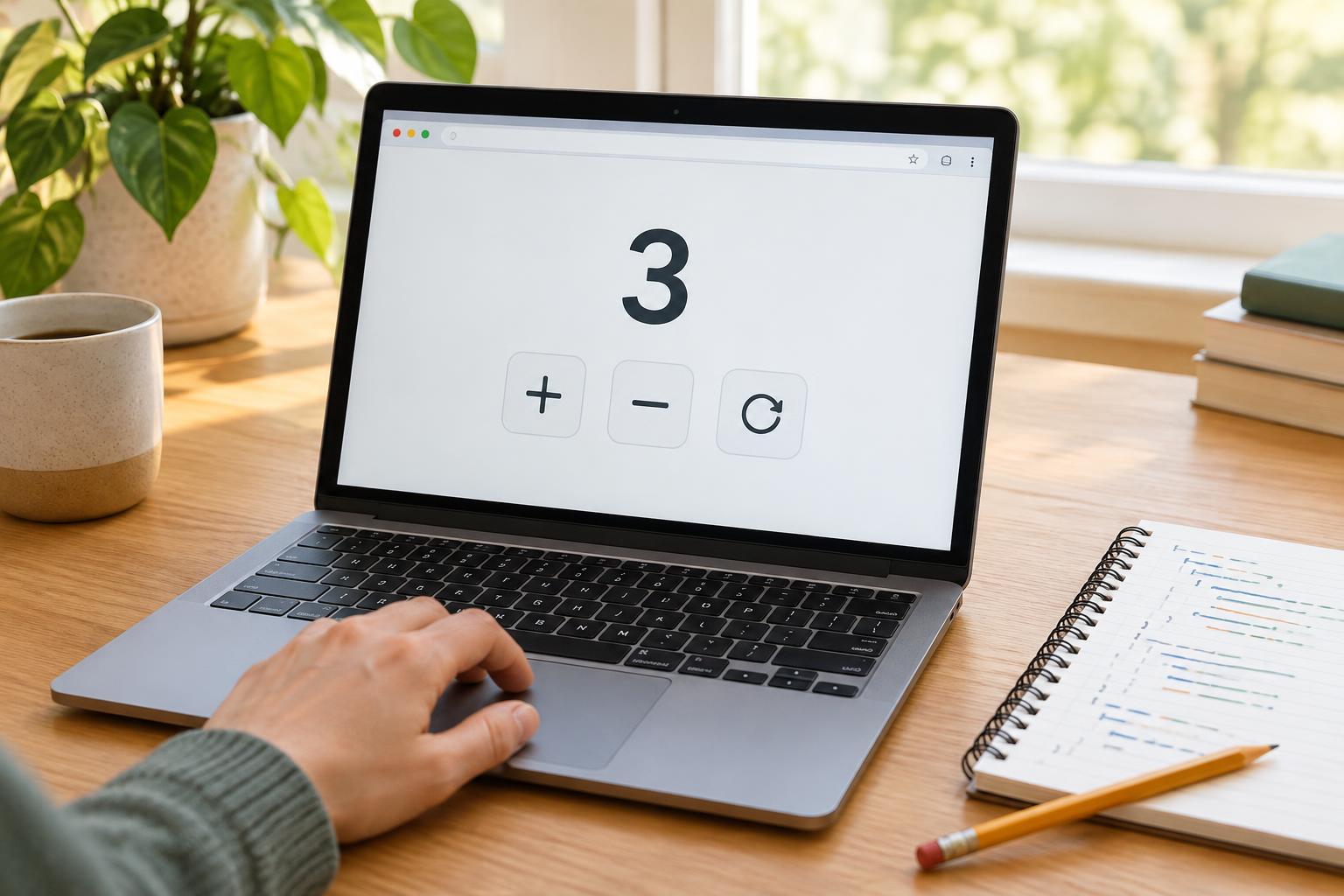
A counter is a useful first interactive project because its behavior is easy to check. The page shows a number and three buttons: Increase adds one, Decrease subtracts one, and Reset returns the number to zero. For this version, Decrease stops at zero rather than showing negative numbers.
You need a browser with developer tools and support for modern JavaScript features such as const, arrow functions, and addEventListener. No library, package manager, or server is required. Open a blank browser tab, open its developer tools, and select the Console. You will paste in JavaScript that creates the entire interface, so you do not need to write HTML for this exercise. The counter will disappear when you reload the tab.
Create the controls and the count
Paste the complete code below into the Console and run it. If your browser shows a warning before allowing pasted code, read it before continuing. Only run code you understand and trust.
(() => { let count = 0; const container = document.createElement('main'); const heading = document.createElement('h1'); const display = document.createElement('p'); heading.textContent = 'Counter'; display.setAttribute('role', 'status'); container.append(heading, display); function render() { display.textContent = `Count: ${count}`; } function makeButton(label, onClick) { const button = document.createElement('button'); button.textContent = label; button.type = 'button'; button.addEventListener('click', onClick); container.append(button); } makeButton('Decrease', () => { count = Math.max(0, count - 1); render(); }); makeButton('Increase', () => { count += 1; render(); }); makeButton('Reset', () => { count = 0; render(); }); render(); document.body.append(container); })();
The variable count holds the counter’s state: the value the interface needs to remember between clicks. It starts at zero. The display paragraph is a separate element that shows that value to the user. The final render() call displays the starting value before anyone presses a button, and appending the container puts the finished controls on the page.
Follow a click from button to screen
Each call to makeButton creates a button, gives it a visible label, and attaches a click handler. A handler is a function that runs when an event occurs. When you press Increase, its handler changes count and then calls render(). Render reads the latest value and replaces the display’s text. Keeping that display update in one function avoids writing slightly different versions of it for each button.
Decrease uses Math.max(0, count - 1). If subtracting one would produce a negative value, Math.max chooses zero instead. Reset assigns zero directly, regardless of the previous count. These are choices about how this particular counter should behave, not rules that every counter must follow. If you want to allow negative numbers, change the Decrease assignment to count -= 1 and run a fresh copy in a reloaded blank tab.
The display has a status role, which can help assistive technology recognize changing text as a status update. The buttons also have visible text labels, so their purposes do not depend on color or position. For a larger project, you would also check the controls with a keyboard and consider whether announcing every count change suits the task.
Test the behavior and fix common mistakes
Try a short sequence with a known result: press Increase twice, Decrease once, then Reset. You should see 1, 2, 1, and 0. Press Decrease again and confirm the value stays at zero. Testing a sequence is more useful than pressing a single button because it checks whether the controls share the same state.
If a button changes the number internally but nothing visible happens, check that its handler calls render() after changing count. If the controls do not appear, check the Console for an error and make sure you ran the entire code block in a tab with a page body. Running the block twice creates two independent counters; reload the blank tab before trying again.
As a next step, add an Increase by 5 button. Give it a click handler that adds five to count and calls render(). Before running it, predict what will happen if you press it twice and then press Decrease. Making a prediction and checking it is a simple way to practice reasoning about state and events.