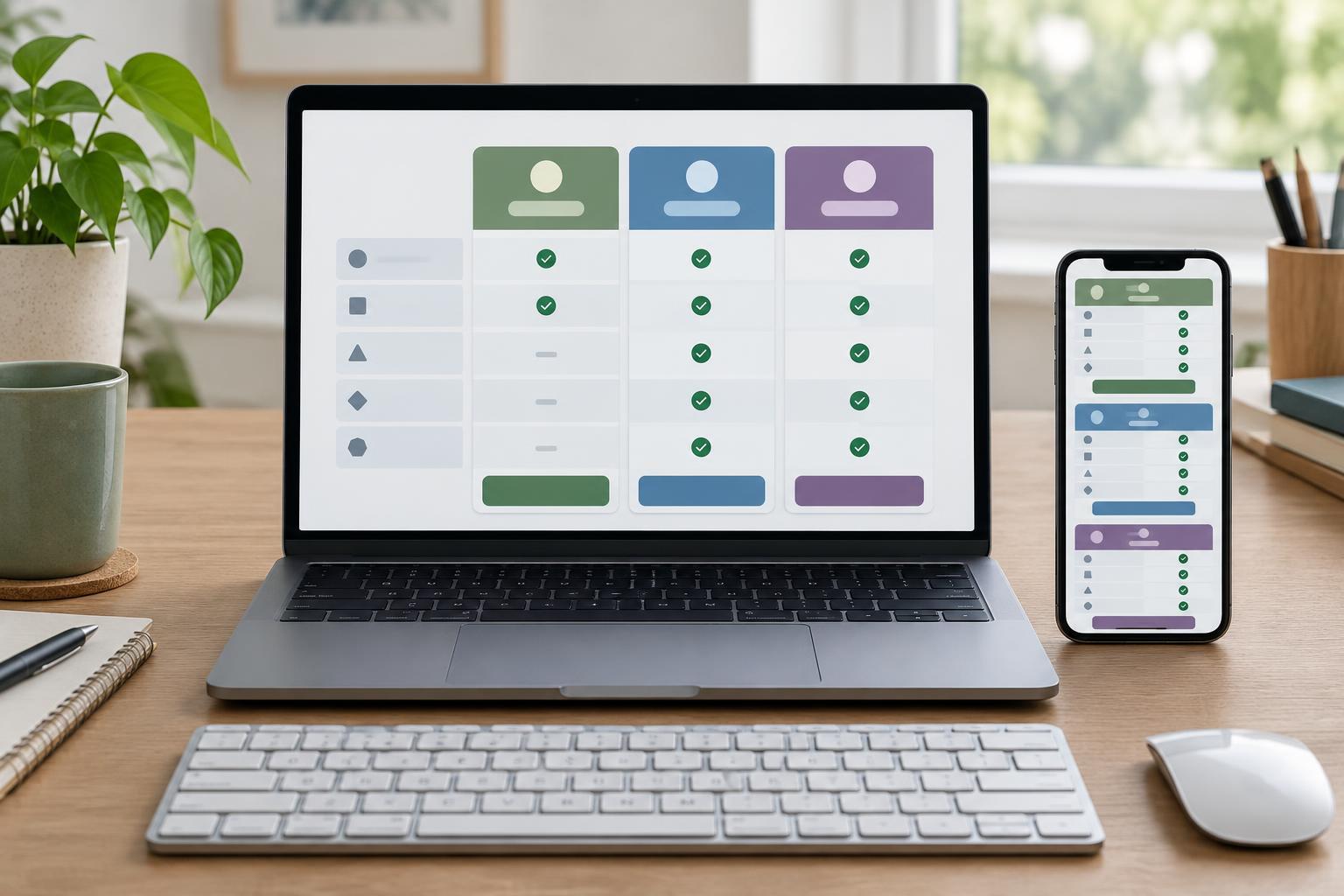
Plan the comparison before writing code
A pricing table helps visitors answer a specific question: what does each plan include, and what will it cost? Start with a short list of details people need to compare, such as price, billing interval, included projects, support, and cancellation terms. Use one column for feature names and one column for each plan. Keep the wording consistent across plans so that differences are easy to spot.
For this project, you need a plain-text code editor and a browser that supports standard HTML5 tables. No framework, package manager, or JavaScript is required. Create an HTML file, open it in your browser, and revise it as you work. You can use any current version of your preferred editor; the project does not depend on an editor-specific feature.
Give the table a clear structure
Use a real HTML table rather than arranging text in columns with spaces or unrelated containers. Add a short caption, such as “Monthly plan comparison,” so the table has a name that explains its purpose. In the first row, use column header cells for the plan names. In later rows, use a row header cell for each feature name and ordinary data cells for the plan details. Set each column header’s scope to col and each feature header’s scope to row. Those relationships help readers connect a value to both its plan and its feature.
Put the price in a row labeled “Price,” and write the currency and billing interval in each plan’s cell, for example, “$12 per month.” If a plan bills annually, state that directly instead of relying on a note elsewhere on the page. For feature rows, use meaningful text such as “Included,” “Not included,” or “Email support.” A checkmark or dash on its own can be ambiguous, especially when read aloud or viewed without color.
Keep the table simple. Avoid merged cells unless they communicate a relationship that cannot be expressed clearly another way. A straightforward grid is easier to maintain when a plan or feature changes, and it gives readers a predictable path through the comparison.
Make plan choices understandable
Visitors should be able to identify an action without relying on its position in the table. If each plan has a sign-up page, use a link with a distinct name such as “Choose Starter plan” or “Choose Team plan.” A link is appropriate when it takes someone to another page; use a button when the control performs an action on the current page. Avoid repeating a vague label such as “Get started” for every plan.
If you highlight a recommended plan, explain the reason in text rather than using color alone. A label such as “Suggested for small teams” is more informative than “Popular” without context. Keep that note separate from the actual price and features so it does not obscure a limitation. If pricing has conditions, such as a minimum commitment, include them near the relevant price in concise, readable language.
Handle narrow screens without losing meaning
A comparison table may be wider than a phone screen. One practical option is to place it in a container that scrolls horizontally when necessary. Preserve the table’s rows and columns rather than turning each cell into an unlabeled block. Do not make text so small that the entire table fits only by becoming difficult to read. If horizontal scrolling is required, make it apparent that more columns are available and check that keyboard users can reach the content.
Use CSS for presentation, not for the information itself. Borders, spacing, and restrained shading can make rows easier to follow, but the text and header structure should still make sense if styles do not load. Maintain visible focus indicators on plan links or buttons, and choose text and background colors with sufficient contrast for comfortable reading.
Check the finished project
Open the file in a browser and read across each row. Can you tell which plan every value belongs to? Then read down each plan column. Are its price, limits, and exclusions clear? Try zooming in and narrowing the window to see whether text remains available without overlapping or disappearing. Use the Tab key to reach every plan action and confirm that its focus indicator is visible.
For a final content check, imagine hearing a cell without seeing its color or icon. “Included” is useful only when the associated row and column headers make clear what is included and in which plan. If a cell still needs a visual explanation, improve its wording or the table structure. The result should be a comparison people can use to make a choice, not merely a grid that looks tidy.