Plan the menu and its tools
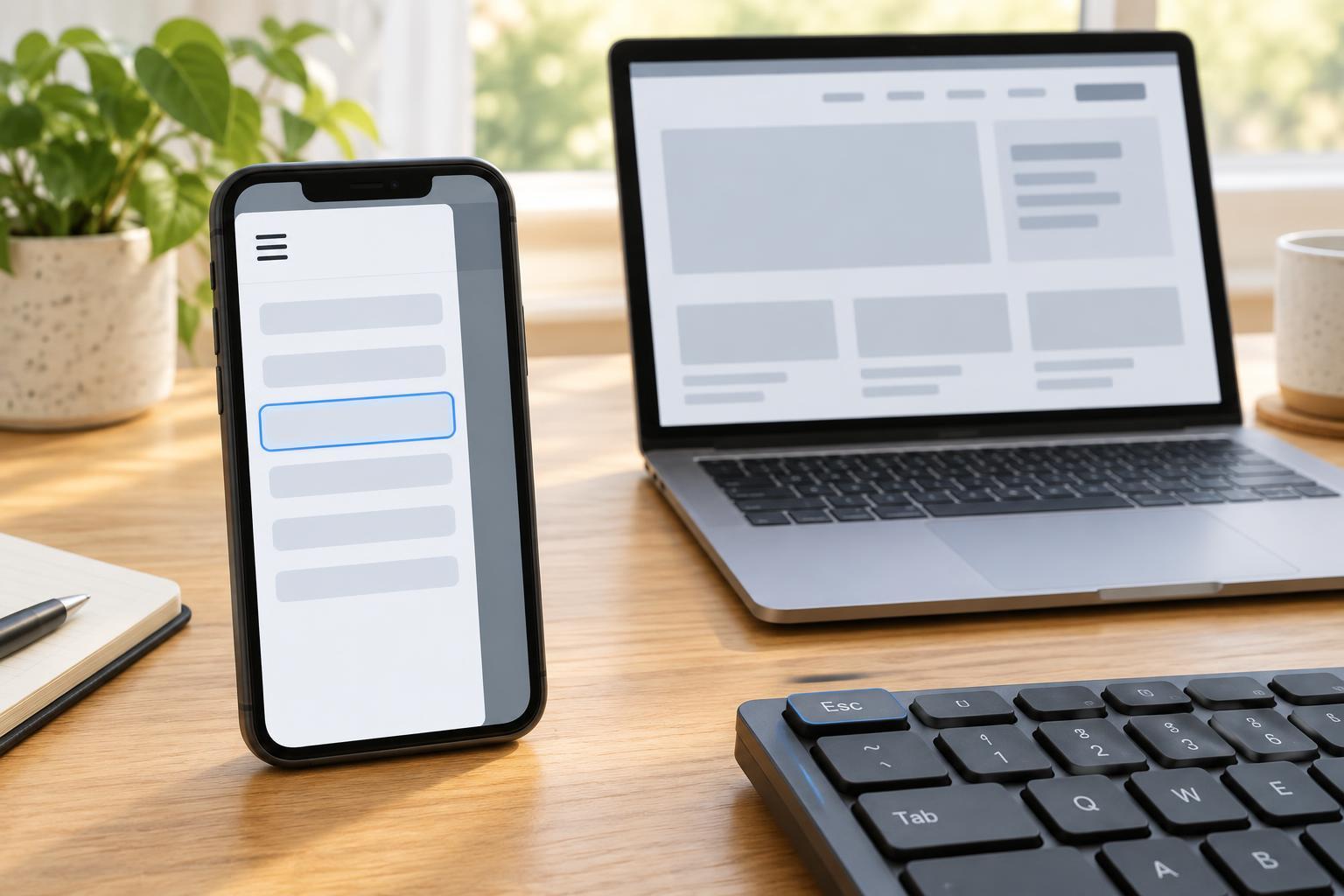
A mobile menu needs two states: closed, with its links out of view and out of the keyboard tab order, and open, with its links available. On wider screens, the links can stay visible without a menu button. A real button is the right control for changing states because it already works with Enter and Space and can receive keyboard focus.
You need a text editor and a modern browser that supports the HTML hidden attribute, CSS media queries, and standard DOM event listeners. No framework, build tool, or package version is required. Put the HTML, CSS, and JavaScript in three files named index.html, styles.css, and menu.js, then open index.html in your browser. The example below uses 48rem as its layout breakpoint; adjust that value if your links need more room.
Set up the HTML structure
In index.html, create a header containing your site name and a nav element. Give the nav an accessible name, such as aria-label set to Primary navigation. Inside it, place a button followed by an unordered list of links. Set the button’s type to button, its visible text to Menu, its aria-controls value to site-links, and its initial aria-expanded value to false. Give the list the id site-links and add the hidden attribute. Make sure each list item contains a normal anchor with a useful destination.
For a small local demo, the anchors can point to sections on the same page: #home, #projects, and #contact. Add matching ids to actual page sections so those links have somewhere to go. Connect styles.css with a stylesheet link and load menu.js with a deferred script. Keep the button outside the list: when the list is hidden, the control to reopen it must remain available.
The hidden attribute does more than remove the list visually: while the menu is collapsed, its links are also unavailable to keyboard navigation. The button’s aria-expanded value communicates the same open or closed state to assistive technology. JavaScript will update that value whenever it changes the list.
Style the narrow and wide layouts
Add these rules to styles.css. The first layout stacks links for a narrow screen. Its explicit hidden rule keeps a collapsed list hidden even though the list also has a display rule. At 48rem and wider, the menu button disappears and the links are shown in a row, including when the list still has its hidden attribute.
.site-links { display: flex; flex-direction: column; gap: 0.25rem; list-style: none; padding: 0; margin: 0.75rem 0; } .site-links[hidden] { display: none; } .site-links a, .menu-button { display: inline-block; padding: 0.75rem; } .site-links a:focus-visible, .menu-button:focus-visible { outline: 3px solid #174ea6; outline-offset: 3px; } @media (min-width: 48rem) { .menu-button { display: none; } .site-links { flex-direction: row; } .site-links[hidden] { display: flex; } }
Choose link and background colors that remain easy to distinguish, and do not remove the browser’s default focus outline unless you replace it with a clear one. The padding makes each link and the button easier to select by touch or pointer. If your site uses a different desktop layout, keep the important behavior: the button is available when the links collapse, and the links are available when the button is absent.
Add the button and Escape-key behavior
In menu.js, select the button and list, then use the list’s hidden property as the state you change. Updating aria-expanded in the same function prevents the visible menu and the button’s announced state from disagreeing. Escape closes an open mobile menu and returns focus to its button when focus is currently within the menu or on the button.
const button = document.querySelector('.menu-button'); const menu = document.querySelector('#site-links'); const wideScreen = window.matchMedia('(min-width: 48rem)'); function setOpen(open) { menu.hidden = !open; button.setAttribute('aria-expanded', String(open)); } button.addEventListener('click', () => { setOpen(menu.hidden); }); document.addEventListener('keydown', (event) => { const focusInMenu = menu.contains(document.activeElement); const focusOnButton = document.activeElement === button; if (event.key === 'Escape' && !wideScreen.matches && !menu.hidden && (focusInMenu || focusOnButton)) { setOpen(false); button.focus(); } });
There is no need to intercept Enter or Space: the native button handles those keys. Likewise, leave the anchors as ordinary links. The desktop CSS displays them regardless of whether the mobile menu was last left open or closed.
Test the interactions
Start with a narrow browser window and reload the page. The links should be hidden and the Menu button should be visible. Press Tab until the button receives focus, then press Enter or Space. The links should appear, and subsequent Tab presses should reach them. Press Escape while a link has focus: the links should disappear and focus should return to the button. Press the button again to confirm the menu can reopen.
Next, widen the window past the breakpoint. The button should disappear and the links should remain visible, whether you left the mobile menu open or closed. Narrow the window again to check the previous mobile state. Finally, follow every link and check that its destination exists. If a link can be tabbed to while the narrow menu looks closed, inspect the hidden attribute and the .site-links[hidden] rule; if the links vanish on desktop, inspect the wide-screen override.