What you will build and what you need
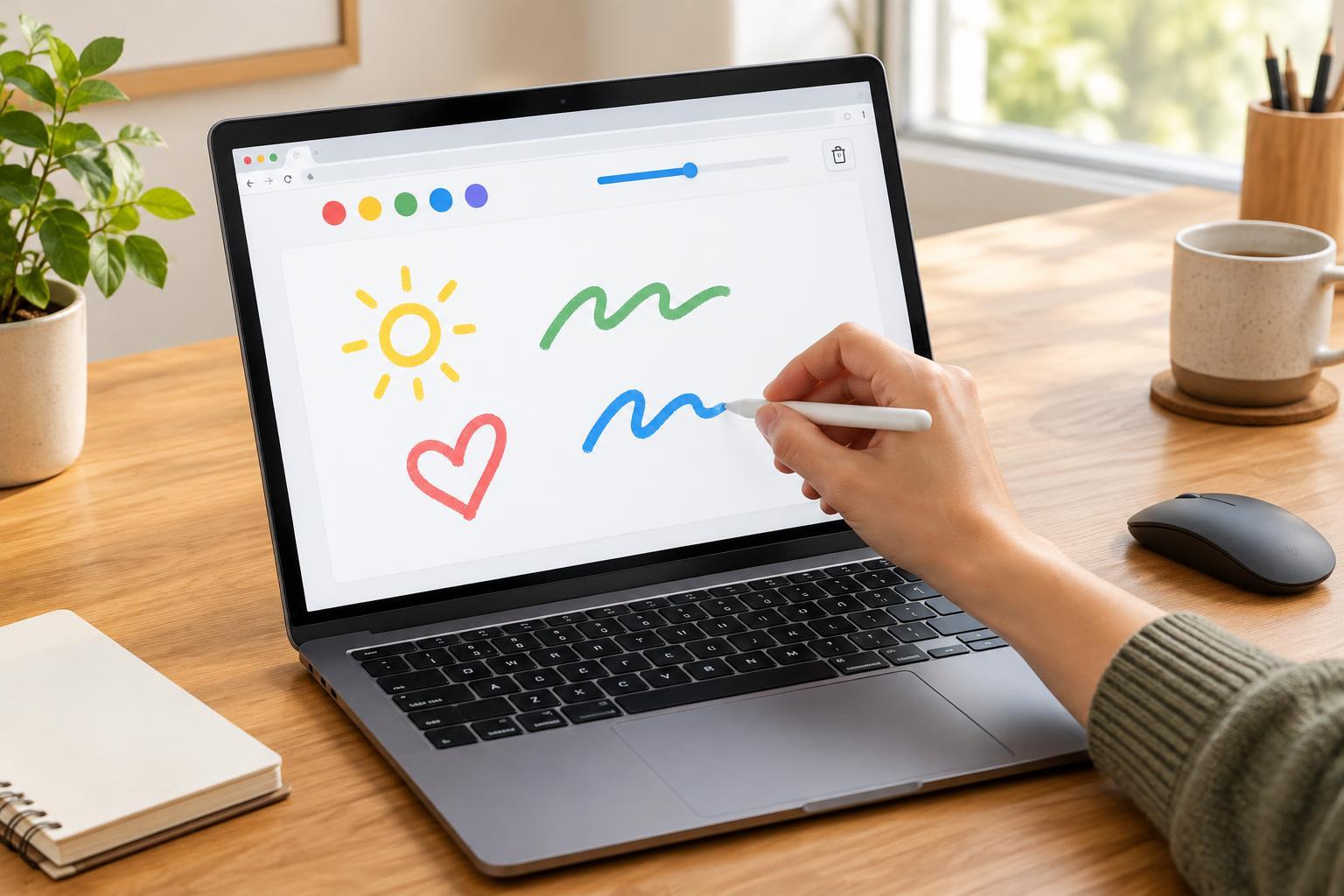
A canvas is a rectangular area whose pixels JavaScript can change. Unlike a collection of ordinary page elements, a canvas does not remember each line as a separate object. Your drawing code must decide where a stroke starts, how it continues, and when it ends. That makes a drawing pad a useful small project for practicing events, coordinates, and state.
You need a desktop or mobile browser that supports the Canvas 2D API and Pointer Events. No library, package manager, or specific tool version is required. For this first experiment, open a page you do not mind replacing, open its developer-tools console, and run the JavaScript below. The pad exists only in that page session; reloading removes it. Some browsers show a warning before allowing code to be pasted into the console, so read any warning before proceeding.
Create the pad and its controls
The script creates the canvas and controls for you, so you do not need to write page markup for this experiment. Paste the entire script into the console and run it:
const title = document.createElement('h1'); title.textContent = 'Drawing pad'; const canvas = document.createElement('canvas'); canvas.width = 600; canvas.height = 360; canvas.style.width = '100%'; canvas.style.maxWidth = '600px'; canvas.style.height = 'auto'; canvas.style.border = '1px solid #555'; canvas.style.display = 'block'; canvas.style.touchAction = 'none'; const color = document.createElement('input'); color.type = 'color'; color.value = '#204a87'; const colorLabel = document.createElement('label'); colorLabel.textContent = 'Color '; colorLabel.append(color); const size = document.createElement('input'); size.type = 'range'; size.min = '2'; size.max = '30'; size.value = '6'; const sizeLabel = document.createElement('label'); sizeLabel.textContent = ' Brush size '; sizeLabel.append(size); const clear = document.createElement('button'); clear.textContent = 'Clear'; const controls = document.createElement('div'); controls.append(colorLabel, sizeLabel, clear); controls.style.marginBottom = '12px'; document.body.replaceChildren(title, controls, canvas); const ctx = canvas.getContext('2d'); let activePointer = null; function position(event) { const box = canvas.getBoundingClientRect(); return { x: (event.clientX - box.left) * canvas.width / box.width, y: (event.clientY - box.top) * canvas.height / box.height }; } canvas.addEventListener('pointerdown', event => { if (activePointer !== null) return; if (event.pointerType === 'mouse' && event.button !== 0) return; activePointer = event.pointerId; canvas.setPointerCapture(event.pointerId); const { x, y } = position(event); ctx.beginPath(); ctx.arc(x, y, Number(size.value) / 2, 0, Math.PI * 2); ctx.fillStyle = color.value; ctx.fill(); ctx.beginPath(); ctx.moveTo(x, y); }); canvas.addEventListener('pointermove', event => { if (event.pointerId !== activePointer) return; const { x, y } = position(event); ctx.lineWidth = Number(size.value); ctx.strokeStyle = color.value; ctx.lineCap = 'round'; ctx.lineJoin = 'round'; ctx.lineTo(x, y); ctx.stroke(); ctx.beginPath(); ctx.moveTo(x, y); }); function stopDrawing(event) { if (event.pointerId === activePointer) activePointer = null; } canvas.addEventListener('pointerup', stopDrawing); canvas.addEventListener('pointercancel', stopDrawing); canvas.addEventListener('lostpointercapture', stopDrawing); clear.addEventListener('click', () => { ctx.clearRect(0, 0, canvas.width, canvas.height); });
Understand how a stroke works
Try pressing and releasing without moving. The small filled circle drawn on pointerdown makes that tap visible. When you drag, pointermove adds short line segments. After each segment, beginPath and moveTo start the next one at the current position. This keeps a long drag from repeatedly tracing its earlier segments.
The activePointer variable identifies the mouse, finger, or pen currently drawing. Pointer capture lets that pointer keep sending events to the canvas even if it briefly moves outside its border. Pointerup, pointercancel, and lostpointercapture each stop the stroke. Setting touchAction to none prevents a touch gesture on the canvas from being treated as page scrolling instead of drawing.
The canvas has a 600-by-360 pixel drawing area, but its displayed width can shrink to fit a narrow screen. The position function converts a pointer’s displayed location back into canvas coordinates. Without that conversion, strokes can appear offset when the displayed size differs from the canvas’s pixel dimensions.
Test it and choose a next improvement
Draw a dot, draw a continuous line, change the color and brush size, and then use Clear. If the cursor appears to draw in the wrong place, check that position uses the canvas’s bounding rectangle and scales both coordinates. If touch input scrolls the page, check the touchAction setting. A pen or finger may generate events differently from a mouse, so try the input devices available to you.
Clear removes pixels; it cannot restore an earlier drawing. A useful next project is an Undo button, but that requires saving earlier canvas states or recording strokes so they can be redrawn. You could also add a background color or a button that exports the canvas as an image. Start with one improvement at a time, and test it after both a simple tap and a long stroke.