What CSS Grid does
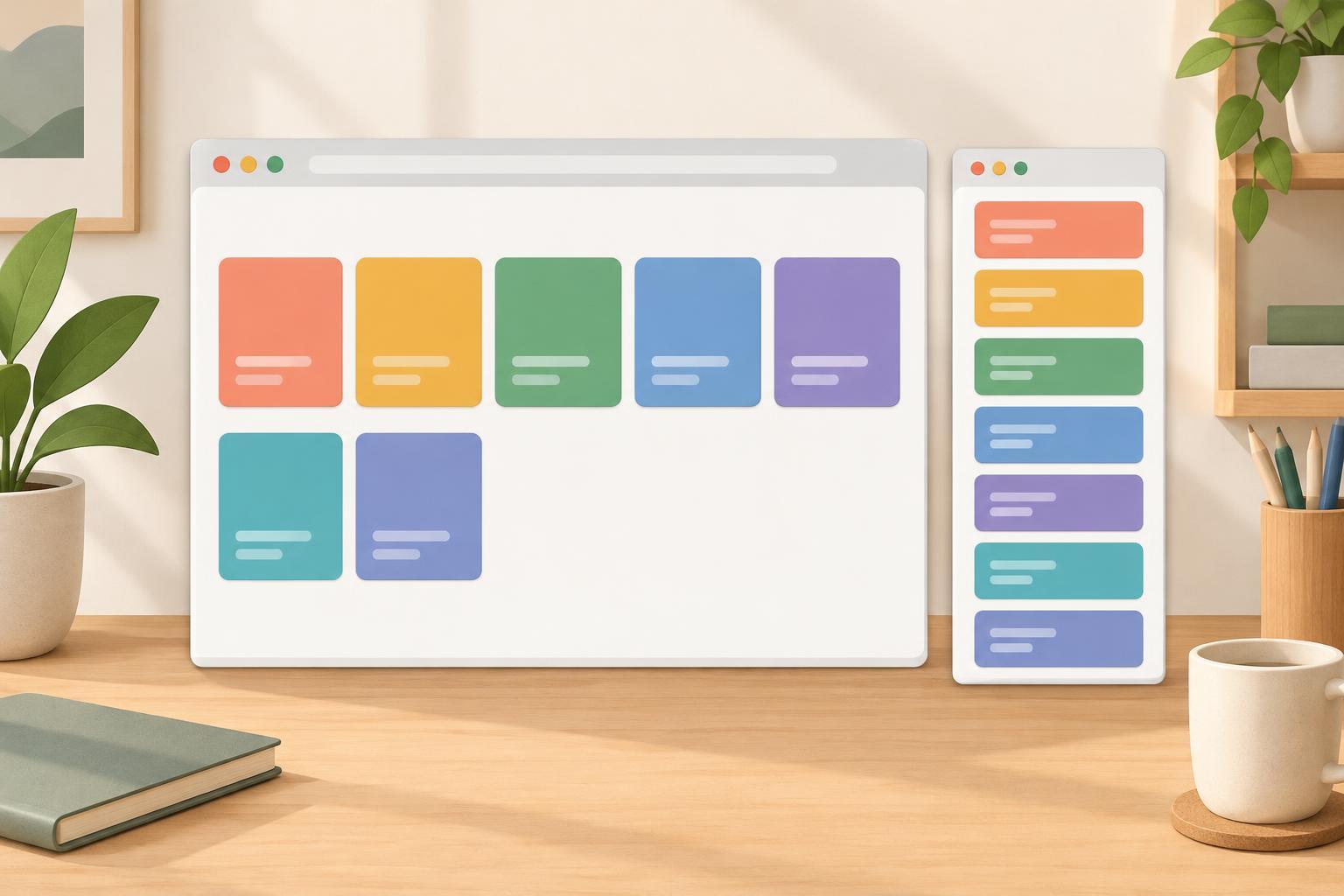
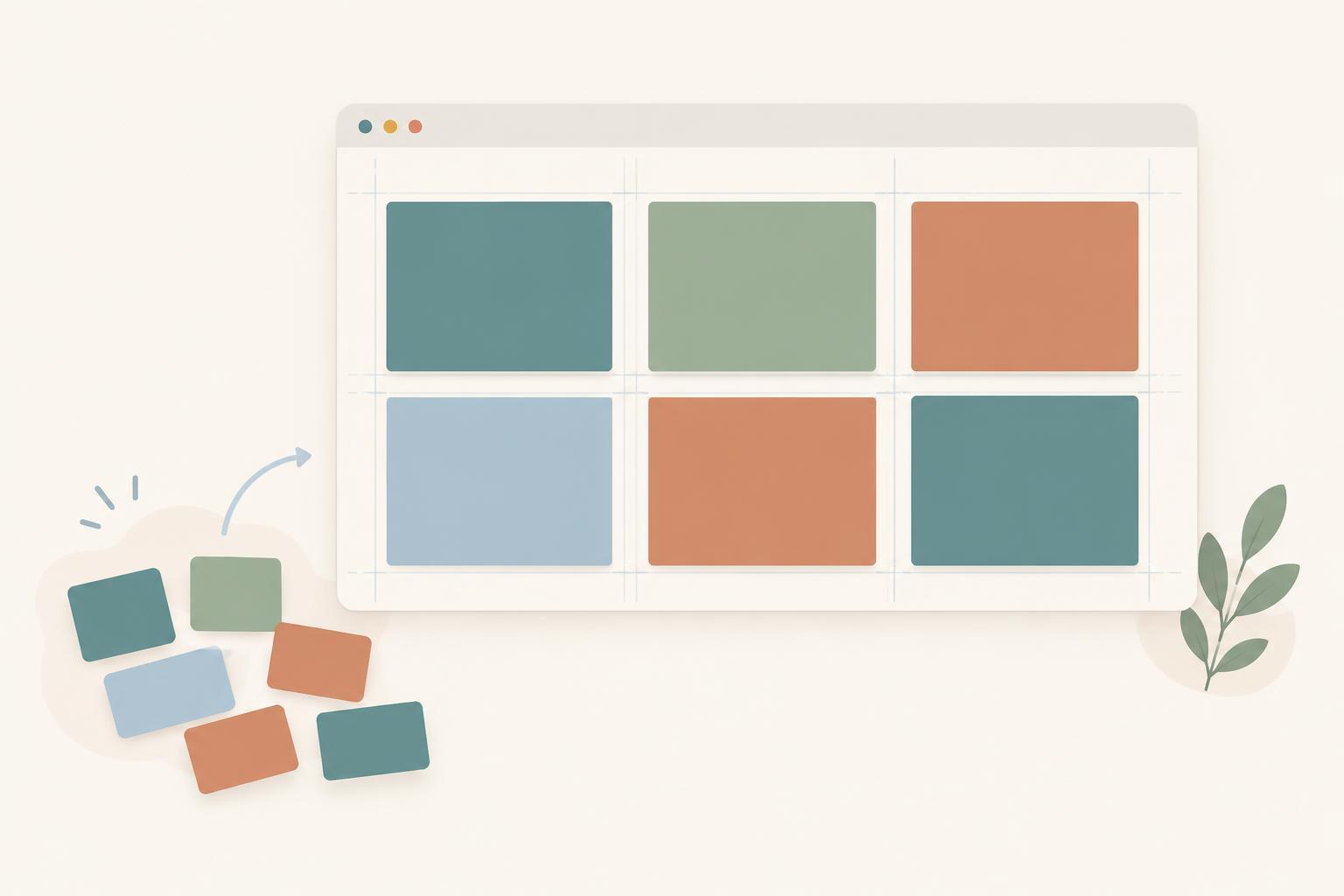
CSS Grid arranges elements in two dimensions: across columns and down rows. It is useful when parts of a page need to line up in both directions, such as cards in a gallery or panels on a dashboard. You define a grid on a parent element, called the grid container. Its direct children become grid items.
To follow along, you need a text editor and a browser that supports CSS Grid. The example uses HTML5 and standard CSS Grid properties; it does not require a library or build tool. You can place the CSS in a stylesheet connected to a simple HTML page. Start with a parent element containing several child elements, then give the parent a class named grid.
Define columns on the container
Set display: grid; on the parent to turn it into a grid container. Then use grid-template-columns to describe the column tracks. For example, grid-template-columns: 200px 200px; creates two columns, each 200 pixels wide. If the container has three or more children, later items continue onto another row.
Fixed widths are easy to understand, but they may not fit a narrow screen. The fr unit divides available space into shares. With grid-template-columns: 1fr 1fr;, two columns receive equal shares of the space available to the grid. With grid-template-columns: 1fr 2fr;, the second receives twice the share of the first. A useful starting point for a two-column layout is display: grid; grid-template-columns: 1fr 1fr;. Put both declarations in the CSS rule for the parent, not in the rules for its children.
The fr unit shares available space after other sizing needs, including gaps, are accounted for. Grid items also have sizing rules of their own, so long words or wide content can sometimes make a column appear wider than expected. Begin with short labels while learning, then test the layout with the content you intend to use.
Define rows, or let Grid create them
Use grid-template-rows when you want to specify row sizes. For example, grid-template-rows: 80px 120px; defines a first row of 80 pixels and a second row of 120 pixels. Row sizes do not need to match column sizes. A grid can have two equal columns and two differently sized rows.
You do not have to define every row. If there are more items than fit in the explicitly defined grid, Grid creates additional rows. By default, those rows size according to their content. This is often convenient for a collection of cards whose number may change. If you want to control the size of automatically created rows, use grid-auto-rows. For example, grid-auto-rows: 100px; gives those rows a 100-pixel track size. Keep in mind that content taller than its track may overflow rather than disappear.
Add space with gaps
A gap is the space between grid tracks. The declaration gap: 16px; adds 16 pixels between columns and between rows. It does not add space around the outside edge of the grid. For outer space, add padding to the container instead.
You can control the two directions separately. Use column-gap: 24px; to set horizontal spacing and row-gap: 12px; to set vertical spacing. A combined shorthand, gap: 12px 24px;, means 12 pixels between rows and 24 pixels between columns. Gaps take up room inside the container, so two 200-pixel columns with a 16-pixel gap need at least 416 pixels of horizontal space before accounting for padding or borders.
Try a small layout and check the result
Create a parent with four child elements labeled A, B, C, and D. In the parent’s CSS rule, set display: grid; grid-template-columns: 1fr 1fr; gap: 16px;. Give each child a background color and some padding so its boundaries are visible. The items should form two columns and, with four children, two rows. Change the column definition to 1fr 2fr; and observe how the widths change. Then add grid-template-rows: 80px 120px; to compare explicit row sizes with rows sized by their content.
If the items stay in a vertical list, check that display: grid; is applied to their parent and that the stylesheet is connected to the page. If spacing seems to appear at the container’s edge, check whether padding or child margins are responsible; gap only separates tracks. Finally, narrow the browser window. If fixed-width columns no longer fit, try flexible columns and decide how the layout should behave on smaller screens. Those checks help you distinguish the grid’s structure from the size and spacing of the content inside it.