What media queries do—and what you need
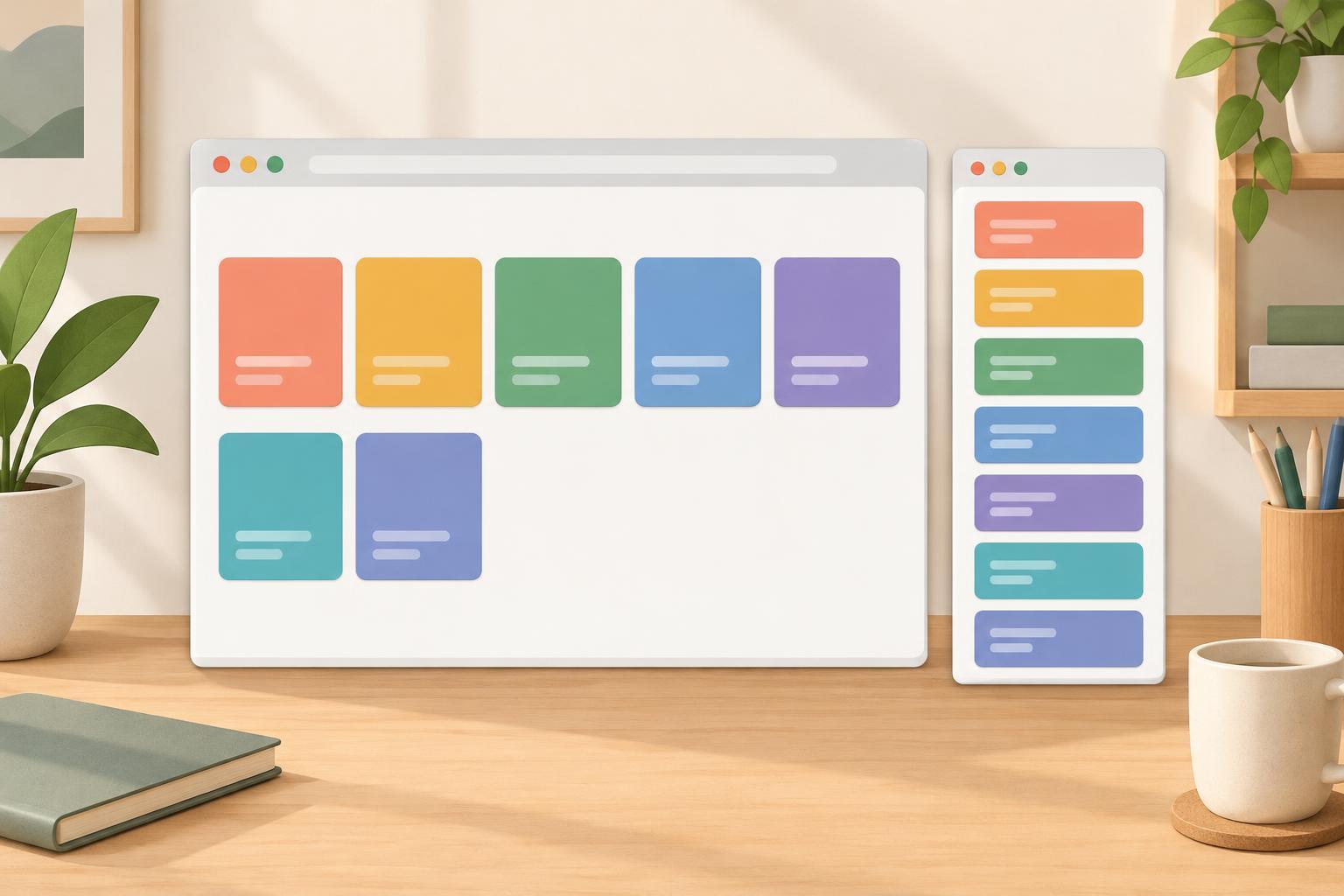
A media query applies CSS rules only when a condition is met. For responsive layouts, that condition is often the width of the browser’s viewport. You might show cards in one column on a narrow screen and two columns when there is enough room. The content stays the same; its arrangement changes.
To follow along, you need a text editor and a browser that supports CSS Grid and media queries. No framework, build tool, or particular editor version is required. Use the browser’s developer tools if you want to resize a simulated viewport. On a page intended for phones, also set the viewport metadata to width=device-width, initial-scale=1 so the page is laid out at the device’s viewport width.
Media queries are most useful alongside flexible CSS. If a container has a fixed width wider than the screen, changing its columns at a breakpoint may not prevent horizontal scrolling. Start with widths that can shrink, then use a media query where the layout genuinely needs to change.
Build a mobile-first card layout
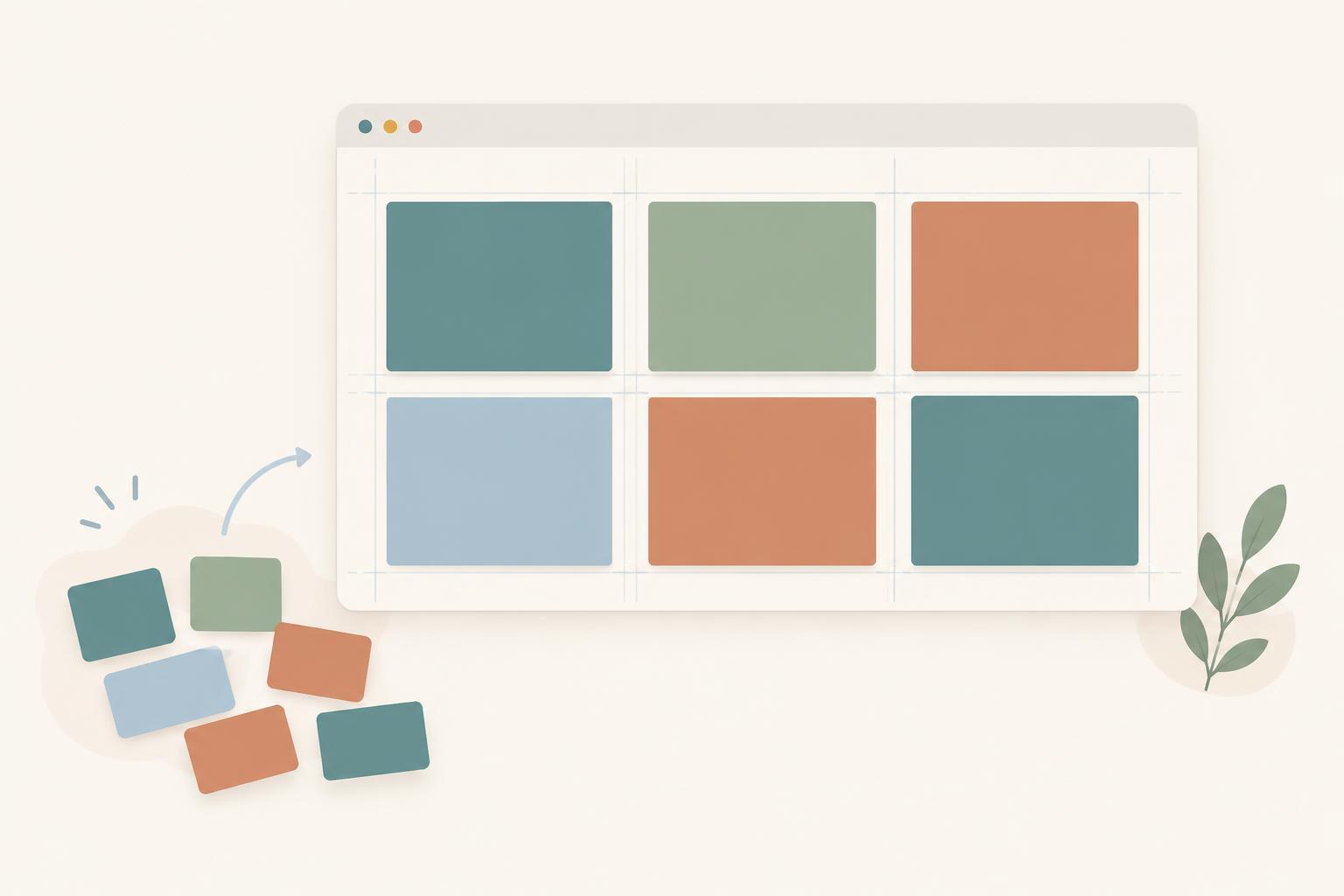
Imagine a page with a main element containing a section with the class card-grid. Each article inside that section is a card. The following CSS gives the section one column by default. It then switches to two equal columns when the viewport is at least 48rem wide.
* { box-sizing: border-box; } main { max-width: 70rem; margin-inline: auto; padding: 1rem; } .card-grid { display: grid; grid-template-columns: minmax(0, 1fr); gap: 1rem; } .card-grid article { padding: 1rem; border: 1px solid #777; } @media (min-width: 48rem) { .card-grid { grid-template-columns: repeat(2, minmax(0, 1fr)); } }
The rules outside the media query apply at every width. The rule inside it overrides only the grid’s column setting when its condition is met. Using min-width this way is called a mobile-first approach: begin with a usable narrow layout, then add changes as space becomes available. The minmax(0, 1fr) columns can shrink to fit the grid, although unusually long, unbroken content may still need separate handling.
The 48rem value is an example, not a universal tablet boundary. Its size in pixels depends on the root font size. If your cards become cramped before that point, adjust the breakpoint to fit the content. Images inside cards also need room to shrink; a rule such as .card-grid img { max-width: 100%; height: auto; } helps prevent an image from overflowing its card.
Choose breakpoints by watching the content
A breakpoint should solve a visible layout problem. Begin with the narrowest practical viewport and widen it gradually. Notice when text lines become awkward, navigation runs out of room, or cards have enough space to sit side by side. Add a media query near that transition rather than choosing widths solely because they match a particular device.
You can add another breakpoint when a distinct layout change is useful. For example, a wider grid might gain a third column using @media (min-width: 70rem). But more breakpoints are not automatically better. Flexible widths, wrapping, and grid gaps can often handle the space between breakpoints without additional rules.
Use min-width queries consistently when extending a mobile-first design. If several queries apply at once, the normal CSS cascade still decides which declaration wins. Keeping related breakpoint rules together and ordering them from narrower to wider makes overrides easier to follow.
Check the layout and troubleshoot overflow
Resize your browser window slowly across the breakpoint, not just at two preset sizes. Check that cards remain readable, gaps look balanced, and no content is clipped. Browser developer tools can help you inspect an element’s computed styles to see whether the media query is active. Test with realistic headings and longer text, because short placeholder content can hide layout problems.
If the two-column rule seems not to work, check the media query’s parentheses, units, and closing braces. Confirm that the card-grid class is on the element whose display is set to grid. On a phone, check the viewport metadata before changing your CSS: without it, the page may be laid out against a wider virtual viewport.
If a horizontal scrollbar appears, look for fixed-width elements, wide images, or long strings that cannot wrap. A breakpoint changes selected declarations; it does not make every child flexible. Fix the element causing the overflow, then resize again. A responsive layout is one that stays usable between your chosen breakpoints as well as at them.