Start with a repository and a clear question
To follow along, you need a terminal and Git 2.x installed. Run git --version to check your installation. Open a local Git repository, or create a practice one with git init in an empty folder. The commands below inspect local files and history; you do not need a remote repository or a hosting account.
Before reviewing, decide what you want to know. Are you checking edits that you have not staged, verifying what your next commit will contain, or trying to understand an earlier commit? Git uses different comparisons for each question. Run git status first to see which files are modified, staged, or untracked. Status gives you an overview; diff shows the content of changes, while log shows recorded commits.
If you are using a new practice repository, make an initial commit before exploring history. Create a small text file, run git add filename.txt, then git commit -m "Add practice file". Edit the file afterward so there is something to compare. If Git asks you to configure an author name or email, follow its terminal instructions before committing.
Use git diff to inspect edits before staging
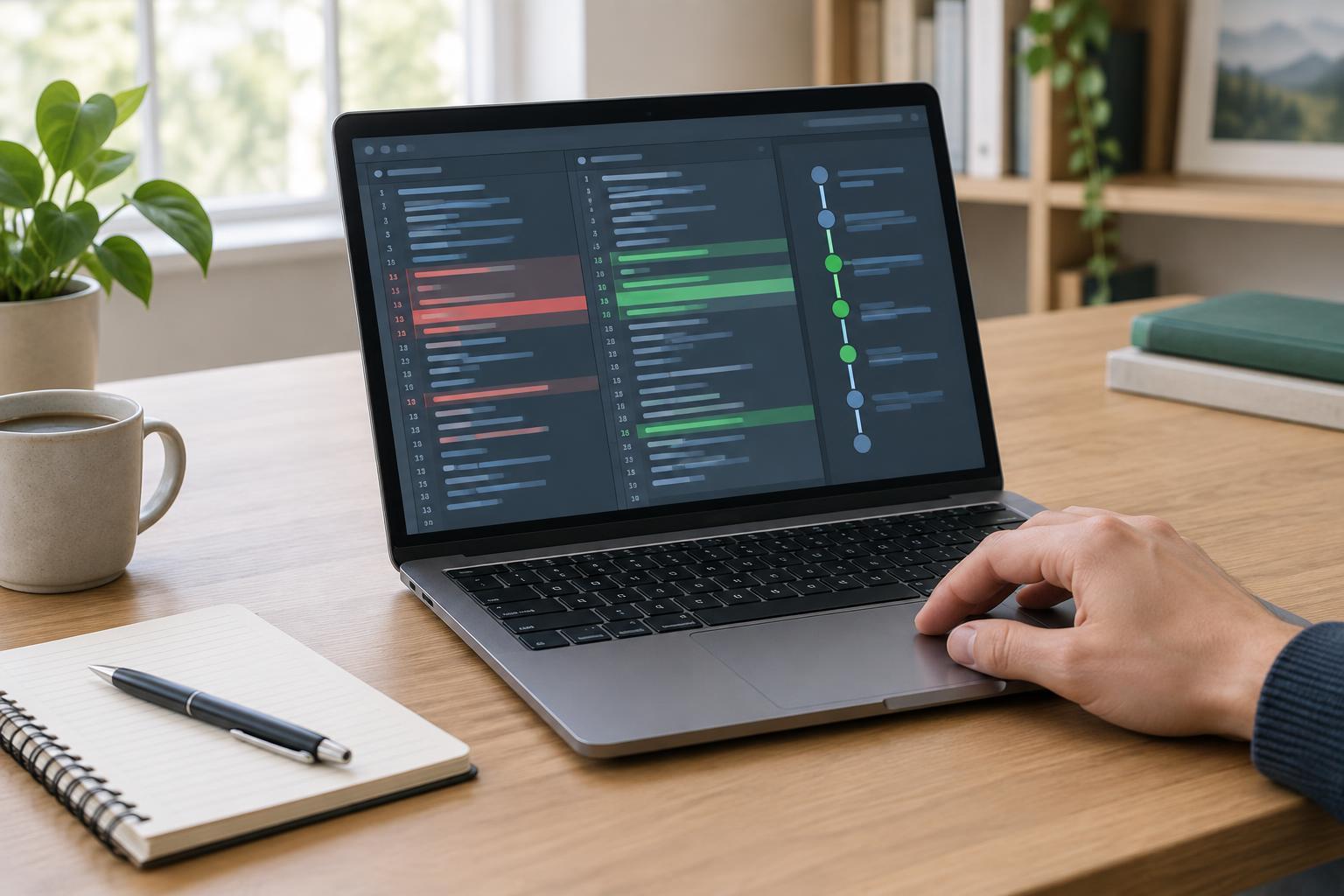
Run git diff to see changes in tracked files that are still in your working directory and have not been staged. A diff identifies the old and new versions of a file, then shows nearby lines for context. Lines beginning with a minus sign were removed from the comparison; lines beginning with a plus sign were added. These signs describe the change, not an instruction to delete or type them.
To focus on one file, run git diff -- filename.txt. The double dash separates options from a path, which is especially useful when a filename could be mistaken for an option. For a shorter overview, run git diff --stat. A useful check before staging is git diff --check, which reports certain whitespace problems in the unstaged changes. None of these commands edits your files.
An untracked file will appear in git status but not in an ordinary git diff, because Git has no tracked version to compare. Open the file directly to review it, then stage it when ready. If git diff prints nothing, check status: the changes may already be staged, the file may be untracked, or there may be no changes.
Review exactly what is staged
Staging lets you choose what will go into the next commit. After running git add filename.txt, use git diff --staged to compare the staged content with the latest commit. This is a different view from plain git diff. If you stage a file and then edit it again, git diff --staged shows the staged version, while git diff shows the newer, unstaged edits.
Run git diff --staged --stat for a quick list of staged files and the size of their changes, then read git diff --staged for the details. Check for accidental files, unrelated edits, and changes that make the code harder to understand. If you need to revise something, edit the file and run git add again to update its staged version. Finish with git status and git diff --staged so you know what the commit will include.
Use git log to understand recorded commits
Run git log to see commit history, typically with the newest commit first. Each entry includes a commit identifier, author information, a recorded date, and a message. Press q to leave the pager if Git opens one. For a compact view, try git log --oneline -5, which requests up to five recent commits. Add --decorate to show available branch and tag labels beside them.
Commit messages help you find a likely change, but they do not show everything it did. Run git show --stat COMMIT to see the files changed by a particular commit, replacing COMMIT with its identifier from the log. Run git show COMMIT to inspect its patch. You can also run git log --oneline -- filename.txt to narrow the displayed history to commits affecting one path. A shortened history is a starting point for investigation, not proof that other files were unaffected.
Compare points in history and build a review habit
To compare two commits directly, run git diff OLDER NEWER, replacing each placeholder with a commit identifier shown by git log. Git displays the changes needed to get from the first commit’s content to the second’s. For the latest commit, git show HEAD is often simpler: HEAD refers to the commit currently checked out. To compare the latest commit with its parent, git diff HEAD~1 HEAD also works when that parent exists; an initial commit has no parent.
A practical routine is to run git status, inspect unstaged edits with git diff, stage only the files you intend to commit, and inspect them with git diff --staged. After committing, use git log --oneline -5 to confirm the new entry and git show HEAD to review what was recorded. This sequence separates work in progress from saved history and makes small mistakes easier to catch while they are still easy to fix.