What you will build
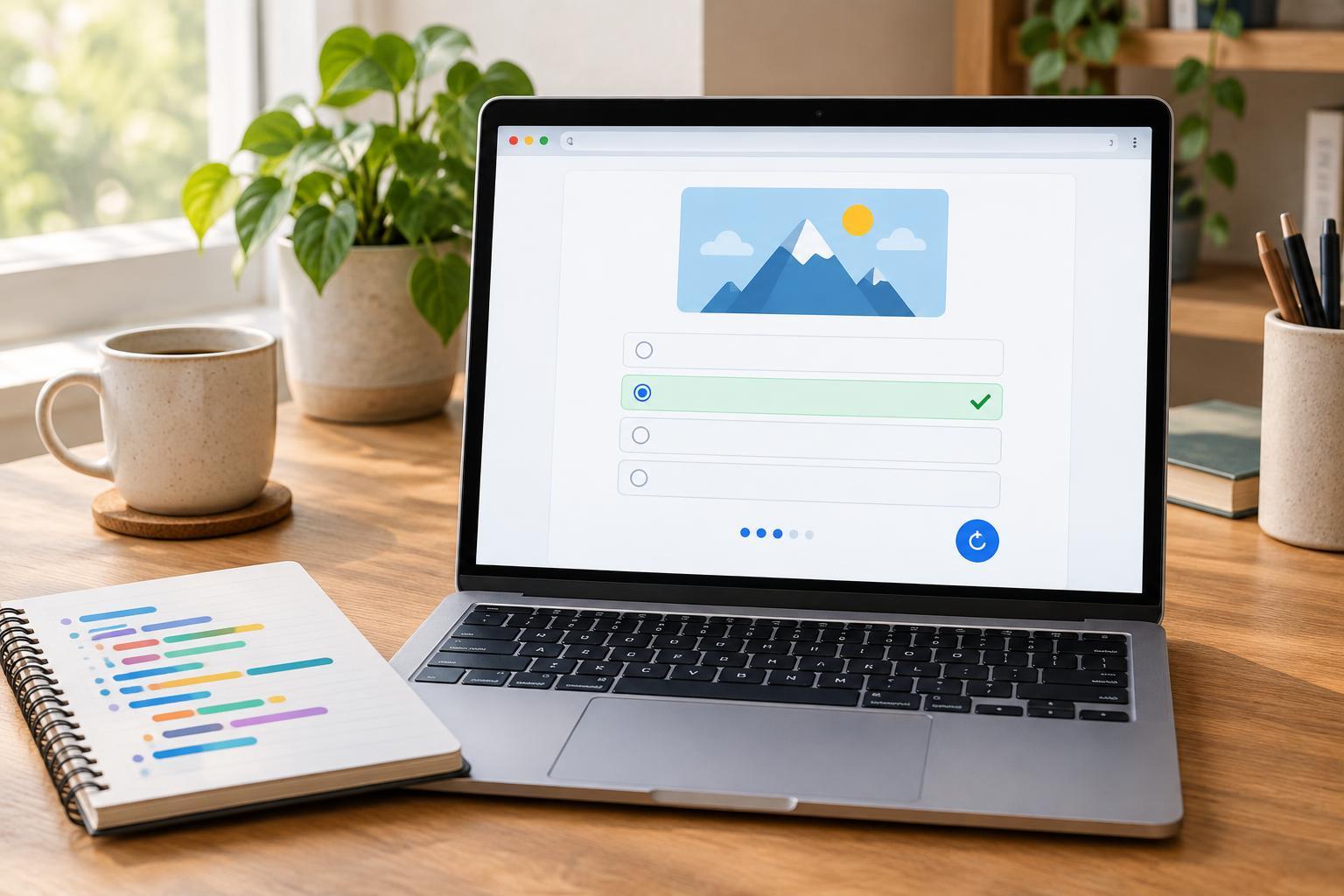
This project shows one multiple-choice question at a time. When someone chooses an answer, the quiz reports whether it was correct, updates the score if needed, and reveals a Next button. After the final question, it displays the result and a Restart button. Answer buttons become unavailable after a choice so a question cannot add to the score twice.
You need a text editor and a modern web browser. No packages, build tools, or library versions are required. Create a file named quiz.html, paste in the example below, save it, and open it in your browser. Keep the HTML, CSS, and JavaScript together for this first version; separating them into files can come later.
Create the quiz file
The questions array holds the text, answer choices, and the index of the correct choice. Each answer is a button created by JavaScript. Paste this complete example into quiz.html:
<!doctype html> <html lang="en"> <head> <meta charset="utf-8"> <meta name="viewport" content="width=device-width, initial-scale=1"> <title>Multiple-choice quiz</title> <style> body { font-family: system-ui, sans-serif; max-width: 38rem; margin: 2rem auto; padding: 0 1rem; line-height: 1.5; } #answers { display: grid; gap: 0.5rem; margin: 1rem 0; } button { padding: 0.65rem; text-align: left; cursor: pointer; } button:disabled { cursor: default; } </style> </head> <body> <h1>Quick web quiz</h1> <p id="progress"></p> <h2 id="question"></h2> <div id="answers"></div> <p id="feedback" aria-live="polite"></p> <p id="score"></p> <button id="next" type="button" hidden>Next question</button> <button id="restart" type="button" hidden>Restart quiz</button> <script> const questions = [ { text: "What does HTML describe?", choices: ["Page structure", "Server speed", "Image size"], correct: 0 }, { text: "Which language can style a web page?", choices: ["SQL", "CSS", "Python"], correct: 1 }, { text: "Which value is a JavaScript boolean?", choices: ["maybe", "7", "true"], correct: 2 } ]; const progress = document.querySelector("#progress"); const question = document.querySelector("#question"); const answers = document.querySelector("#answers"); const feedback = document.querySelector("#feedback"); const scoreDisplay = document.querySelector("#score"); const next = document.querySelector("#next"); const restart = document.querySelector("#restart"); let current = 0; let score = 0; function showQuestion() { const item = questions[current]; progress.textContent = `Question ${current + 1} of ${questions.length}`; question.textContent = item.text; feedback.textContent = ""; answers.replaceChildren(); next.hidden = true; item.choices.forEach((choice, index) => { const button = document.createElement("button"); button.type = "button"; button.textContent = choice; button.addEventListener("click", () => chooseAnswer(index)); answers.append(button); }); scoreDisplay.textContent = `Score: ${score}`; } function chooseAnswer(index) { const item = questions[current]; if (index === item.correct) { score += 1; feedback.textContent = "Correct!"; } else { feedback.textContent = `Not quite. The answer is ${item.choices[item.correct]}.`; } answers.querySelectorAll("button").forEach(button => button.disabled = true); scoreDisplay.textContent = `Score: ${score}`; next.hidden = false; } next.addEventListener("click", () => { current += 1; if (current < questions.length) { showQuestion(); } else { progress.textContent = "Quiz complete"; question.textContent = "Your result"; answers.replaceChildren(); feedback.textContent = `You scored ${score} out of ${questions.length}.`; next.hidden = true; restart.hidden = false; } }); restart.addEventListener("click", () => { current = 0; score = 0; restart.hidden = true; showQuestion(); }); showQuestion(); </script> </body> </html>
How the score and buttons work
Two variables hold the quiz state: current identifies the question being shown, and score counts correct answers. showQuestion reads the current question and creates a fresh button for each choice. The correct value is a zero-based index: 0 means the first choice, 1 the second, and so on. If you edit a question, check that its correct index still points to the intended answer.
A click calls chooseAnswer with the selected index. That function compares the index with the answer key, changes the score only for a correct choice, and disables all the choice buttons. The Next button then becomes visible. After the last question, Next displays the final result instead of trying to read another question. Restart sets both state variables back to zero and calls showQuestion again.
Check the behavior and make it your own
Open the file and deliberately pick a wrong answer first. Confirm that the score stays at zero and that repeated clicks cannot change it. Continue through all three questions, check that the result matches your choices, then restart. The first question should return with a zero score and enabled answers. Also try the buttons with Tab and Enter to check basic keyboard operation.
To add a question, copy an object in the questions array and change its text, choices, and correct index. You can add or remove choices without changing the button code. For a next step, consider showing the final score as a percentage or shuffling the question order. Keep the original version working while you make one change at a time; that makes mistakes easier to find.