A remote is an address, not a separate kind of repository
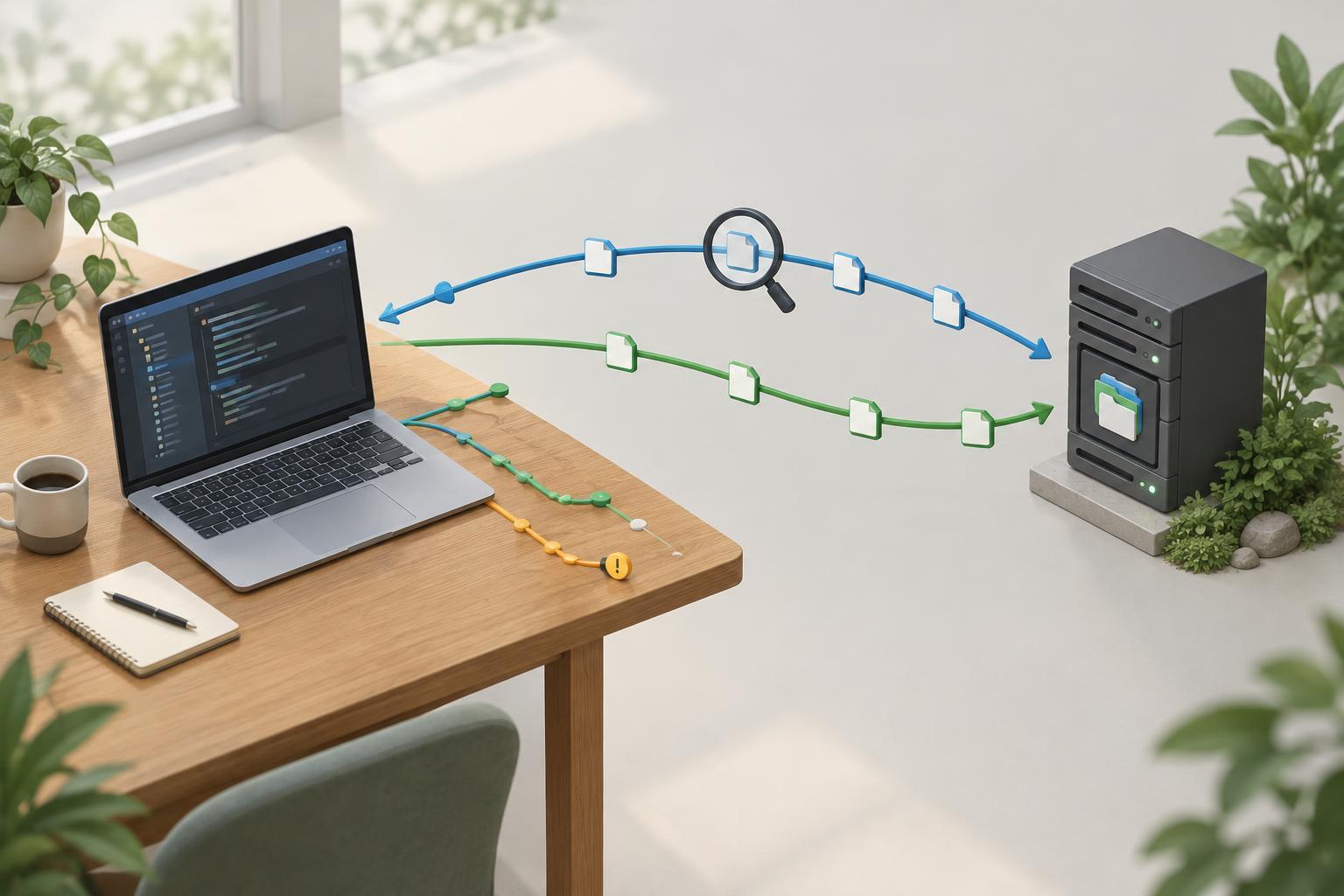
A Git repository on your computer contains commits and branches. A remote is a saved name for another repository that Git can contact. That repository might be hosted online or stored elsewhere on your computer or network. Teams use remotes to share work, but a local repository can work without one.
The name origin is conventional, not special: it usually refers to the repository you cloned or the first remote you added. Run git remote -v to see your remote names and their addresses. The output labels addresses for fetching and pushing; these are often the same, but they do not have to be. Changing files locally does not automatically update a remote.
Set up a branch to share
For this example, you need Git 2.28 or newer, a terminal, and an empty remote repository that you can write to. The commands also assume you have configured your Git author name and email. Replace URL_OF_EMPTY_REPOSITORY with the address supplied by your repository host. Git 2.28 or newer supports git init -b main, which creates a repository with a branch named main.
In a new project directory, run git init -b main. Create a file, such as README.md, then run git add README.md and git commit -m "Add README". Next, run git remote add origin URL_OF_EMPTY_REPOSITORY. You can check the saved address with git remote -v. Finally, run git push -u origin main. You may be asked to authenticate, depending on how the remote is configured.
The push sends the commits needed to update the remote branch named main. The -u option also sets origin/main as the upstream for your local main branch. After that, while you are on main, a plain git push or git pull can usually use that upstream without repeating the remote and branch names. A push shares commits, not uncommitted edits: use git status to check what you have actually committed.
Fetch checks for changes; pull brings them into your branch
Suppose someone else pushes new commits to the remote main branch. Run git fetch origin to download information about those commits without changing your current branch or working files. Git updates its remote-tracking reference, origin/main, to reflect what it found. This makes fetch a useful first step when you want to inspect changes before incorporating them.
To compare positions, run git status -sb while on main, or use git log --oneline --graph --decorate --all to view commits and branch labels. If the fetched commits belong in your local main branch, git pull retrieves remote changes and then integrates them into your current branch. A pull can fast-forward your branch when you have no competing local commits. If both sides have new commits, Git must combine the histories, and its behavior may depend on your configuration or command options.
If you only want a pull that can fast-forward, use git pull --ff-only while on main. It stops rather than choosing a way to combine divergent histories. This can be easier to reason about when you are learning: you can inspect the branches and decide what to do next.
What happens when a push is rejected
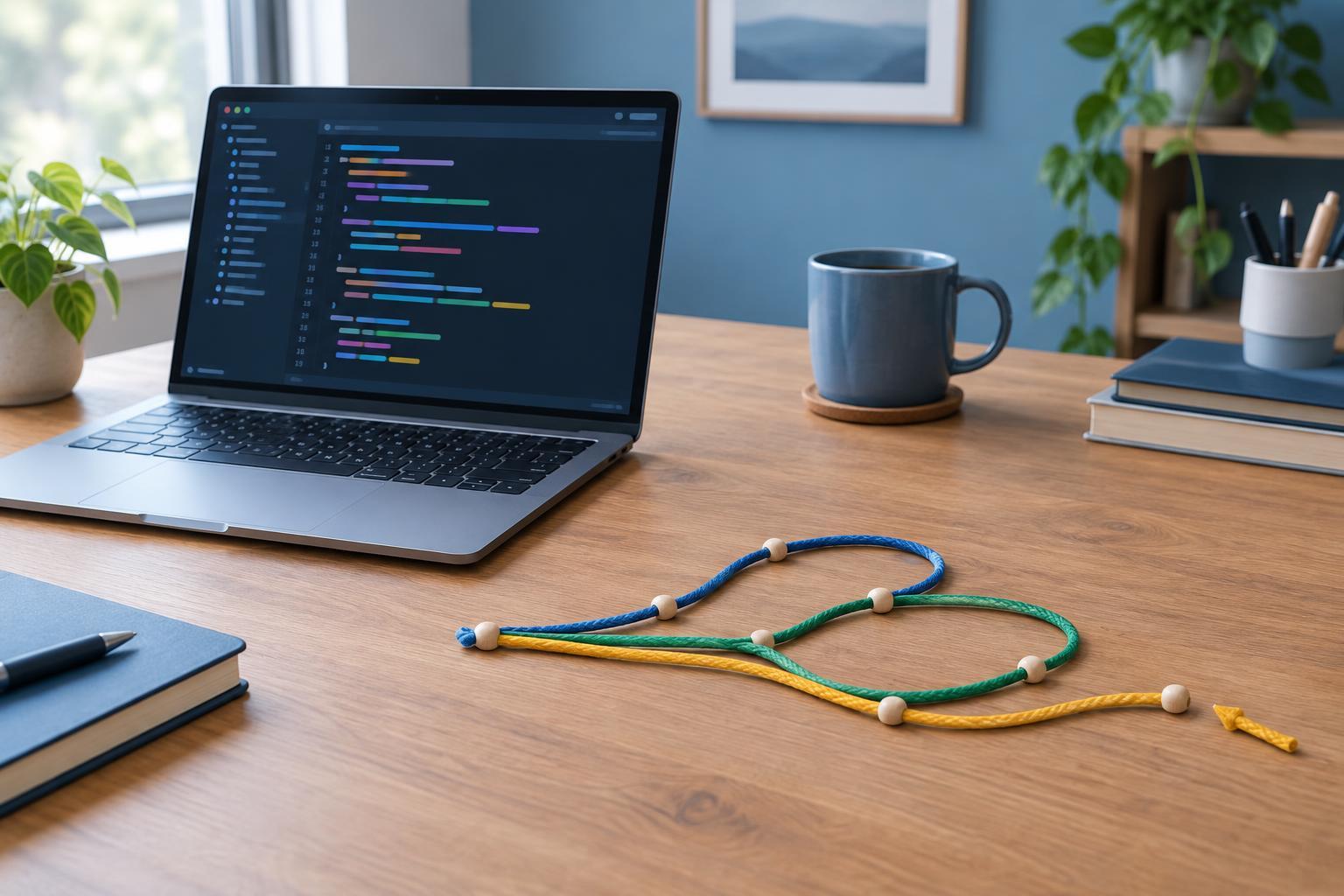
A common push rejection means the remote branch has commits your local branch does not contain. Git normally refuses to move that remote branch backward and discard those commits. This can happen when another contributor pushes while you are working. Fetch the latest state with git fetch origin, then inspect it before integrating it. After your branch includes the remote commits, try pushing again.
When branches have diverged, one option is git pull --no-rebase origin main, which combines the histories with a merge commit if needed. Another is rebasing, which reapplies local commits on top of the fetched branch and changes their commit identities. If you are collaborating, understand your team's preferred approach before rewriting commits that others may already have. Avoid treating a force push as a routine fix for a rejected push.
Pause and check when Git cannot combine changes
A merge or rebase may stop because two changes cannot be combined automatically. Run git status to see which files need attention. Open those files, decide which content to keep, remove any conflict markers, and stage the resolved files with git add. Git status will also show the next step for finishing the operation. If you are not ready to resolve a merge, git merge --abort can usually return you to the state before it began.
A useful routine is to check git status, fetch to see what changed remotely, integrate changes deliberately, and push only after your local work is committed and ready to share. Remote names, tracking references, and upstream settings are conveniences for that routine; they do not replace checking which branch you are on and where your commits will go.