What you need before you start
Markdown is a plain-text format often used for README files and other project documentation. You type characters such as # for a heading or backticks around code, and a renderer turns them into formatted content. A preview shows the rendered result beside or instead of the text you are editing. This makes it easier to catch formatting mistakes before sharing a document.
This walkthrough uses the desktop edition of Visual Studio Code (VS Code) 1.x and its built-in Markdown preview. You do not need a Markdown extension, a web server, or a separate browser for the basic steps. Menu labels and preview behavior can vary between editor releases, so use the Command Palette search described below if a command is not where you expect it.
Create a file and open the preview
Open a project folder in VS Code, then create a file named README.md. The .md extension helps the editor recognize it as Markdown. Add a few lines to try out the preview: a heading beginning with #, a short paragraph, and a list whose items begin with a hyphen followed by a space. Save the file so it has a location in your project; that location matters when you later add relative links or images.
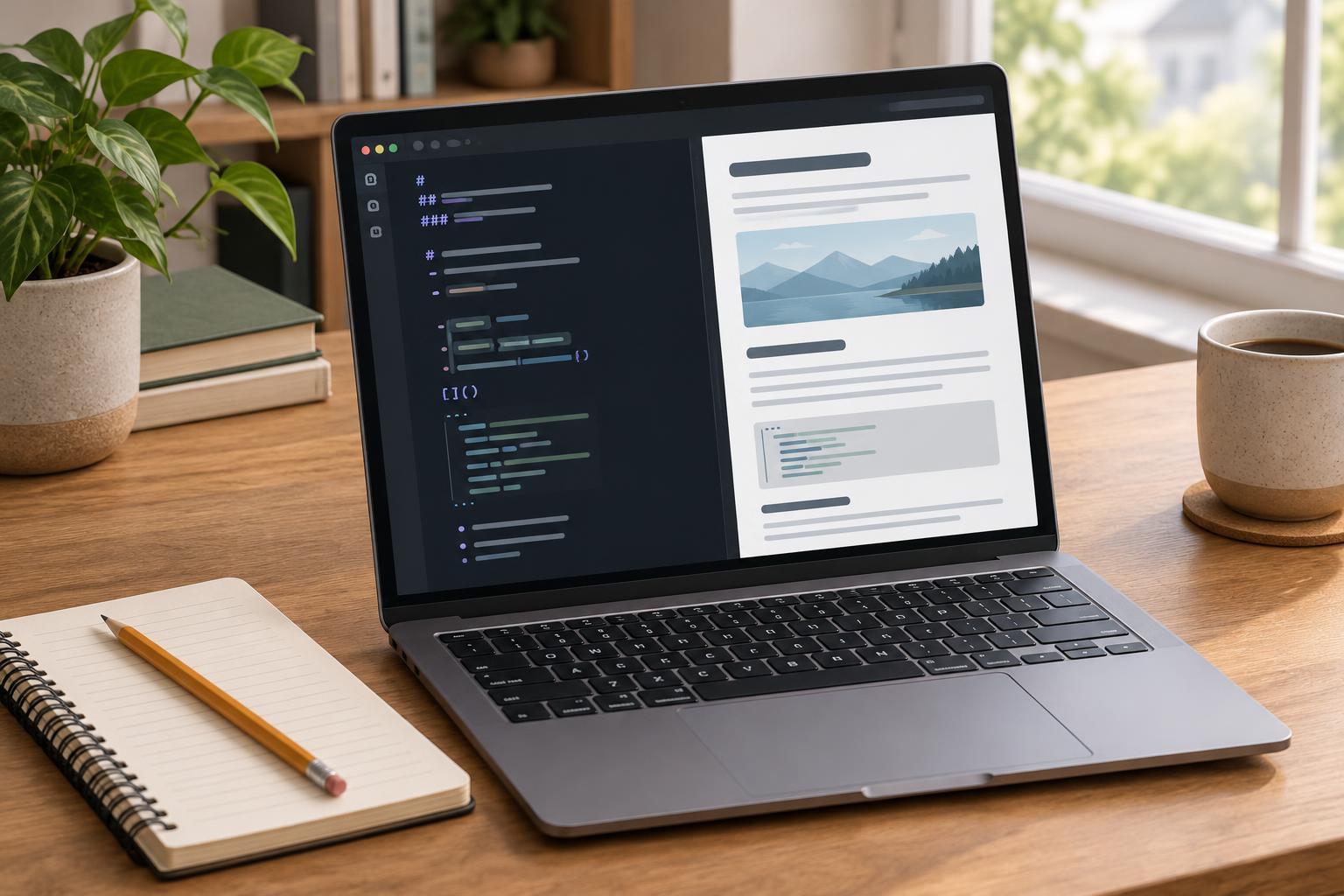
With README.md active, open the Command Palette from the View menu and search for “Markdown: Open Preview to the Side.” Select the command to place the rendered document next to your source text. If you want the preview in the current editor group instead, search for “Markdown: Open Preview.” Editing the source should update the preview, allowing you to compare what you typed with what a reader will see.
If the command is hard to find, check that the active file is README.md rather than an untitled plain-text file. You can also look at the language mode shown in the editor’s status bar and set it to Markdown if necessary. Recognition of the file type is what makes the Markdown-specific commands available.
Check the parts readers will use
Read the preview as a visitor would, starting with the document structure. Is there one clear top-level heading? Do lower-level headings describe the steps beneath them? A heading needs a space after its # characters: “## Installation” is a heading, while “##Installation” may not render as intended. Leave a blank line between distinct paragraphs, lists, and code blocks when the layout looks crowded or inconsistent.
For code examples, use a fenced block: place three backticks on a line before the code and three on a line after it. Add a language name immediately after the opening backticks, such as javascript or html, if you want the preview to apply syntax highlighting where supported. Check that commands, output, and explanatory text are clearly separated. Highlighting improves readability, but it does not prove that a code sample works.
Inspect links and images as well as their appearance. A link can look correct in the preview yet point to the wrong destination. For project files, relative paths are usually easier to maintain than paths tied to one computer. For example, an image in an images folder beside README.md could use . Make sure the filename and letter case match the actual file, especially if the documentation may be viewed on another operating system.
Troubleshoot an unexpected preview
If formatting does not change as expected, first check the source for small syntax errors: missing spaces after list markers, unmatched backticks, or a closing parenthesis missing from a link. Then save the file and reopen the preview. If an image is missing, confirm that its path is relative to the Markdown file’s location, not simply to the folder currently visible in the editor sidebar.
A local editor preview is a useful drafting tool, not a guarantee that every publishing site will display the file identically. Markdown renderers can differ in their support for tables, embedded HTML, and other optional features. If the documentation is destined for a project host or documentation site, check it there too when possible. Treat that final view as the place to catch platform-specific differences.
Make previewing part of your writing routine
Keep the source and preview side by side while drafting, but pause occasionally to review the entire document rather than just the line you changed. Follow the instructions yourself: can you locate the required tools, copy a command without extra punctuation, and understand what should happen next? The preview helps you judge whether headings and examples support that journey.
Before you finish, scan for broken-looking images, ambiguous link text, overly long code lines, and lists that have merged into surrounding paragraphs. Then read the plain-text source once more. Markdown documentation needs to remain understandable both in its rendered form and when someone opens the .md file directly in an editor.