What you need before you start
curl is a command-line tool for making HTTP requests. You can use it to see what a web server returns without opening a browser’s developer tools. The examples here use common curl options that are available in widely used versions. Check your installed version with curl --version. If a command is unavailable, run curl --help to check which options your installation supports.
Open a terminal on macOS or Linux, or a command prompt on Windows. In Windows PowerShell, use curl.exe if typing curl runs a PowerShell command instead of the curl program. The examples use https://example.com as a practice address; its exact response may differ from the descriptions below. Put a URL in quotes when it contains characters such as &, which a shell may otherwise interpret.
See the status, headers, and body
Run curl -i "https://example.com" to include response headers in the output. The first header line contains an HTTP version and a status code, such as 200 for a successful response or 404 when a resource was not found. Beneath it, headers provide details about the response. After a blank line comes the body, which might be HTML, JSON, or another kind of content.
Look for Content-Type to understand what the server says the body contains. Other useful headers may include Content-Length, which describes a length when supplied, and Cache-Control, which gives caching instructions. Header names are case-insensitive, and a server does not have to send every header you might expect. For practice, choose a page that returns readable text: displaying an image or other binary body in your terminal can be messy.
Inspect headers without filling the terminal
If you only need a quick look at headers, try curl -I "https://example.com". This asks curl to make a HEAD request, which requests headers without a response body. It is convenient, but HEAD is not always a substitute for GET: a server may handle the two methods differently or may not support HEAD for a particular resource.
To inspect the headers from a GET request while saving its body, run curl -D headers.txt -o response.html "https://example.com". The -D option writes received headers to headers.txt, and -o saves the body to response.html. You can then open each file separately. Choose a suitable filename for the body you expect; a response is not necessarily HTML just because you saved it with an .html extension. Existing files with those names may be overwritten.
Follow a redirect deliberately
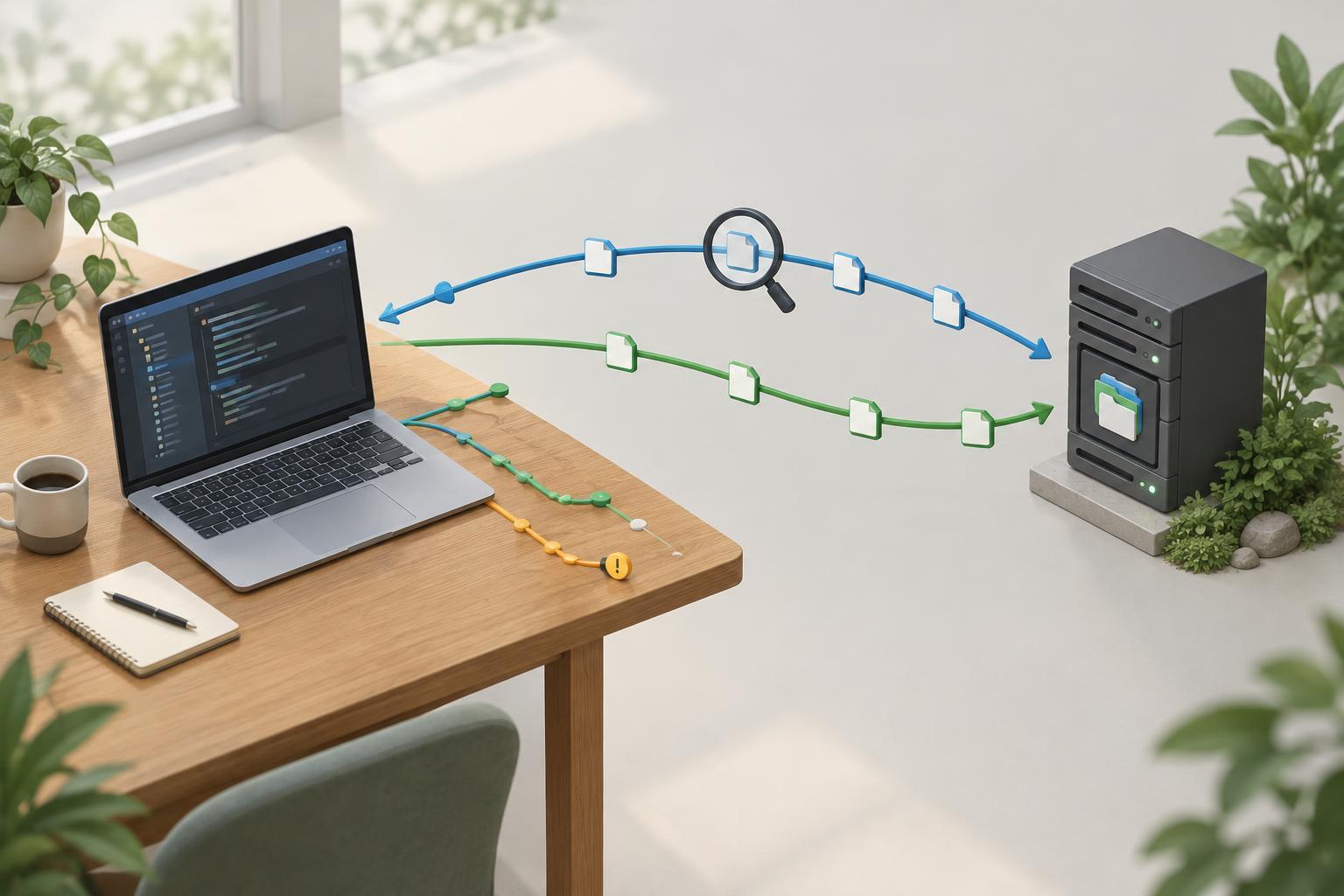
A response in the 300 range may tell a client to request a different URL. A Location header, when present, supplies the destination. By default, curl does not follow redirects for a typical GET request, so curl -i "https://example.com" can help you inspect the first response. Add -L to follow redirects: curl -i -L "https://example.com". With -i, you may see more than one set of response headers as curl moves through the redirect chain.
That distinction matters when debugging. If you expect a successful page but see a redirect, check its Location value before assuming the page itself is broken. If following redirects reaches a final page, inspect the final status and body as well as any earlier responses. A redirect might lead to a sign-in page or another unexpected destination rather than the resource you intended to fetch.
Troubleshoot what you see
Status codes offer a starting point, not a complete diagnosis. A 400-range response generally points to a problem with the request or access to the resource; a 500-range response generally indicates that the server could not complete the request. Read the response body too, because it may contain a useful error message. To see details about curl’s connection and request, run curl -v "https://example.com". Verbose output includes information beyond the response, so it can be noisy.
Be careful before sharing terminal output. URLs, request headers, and verbose logs can contain tokens or other private information; remove them before pasting output into a bug report. If curl reports a certificate problem, do not make disabling certificate checks your default fix. Check that you entered the intended URL and investigate the certificate or local configuration instead. Start with curl -i, add -L only when you want to follow redirects, and use -v when the response alone does not explain the problem.