Before you create a branch
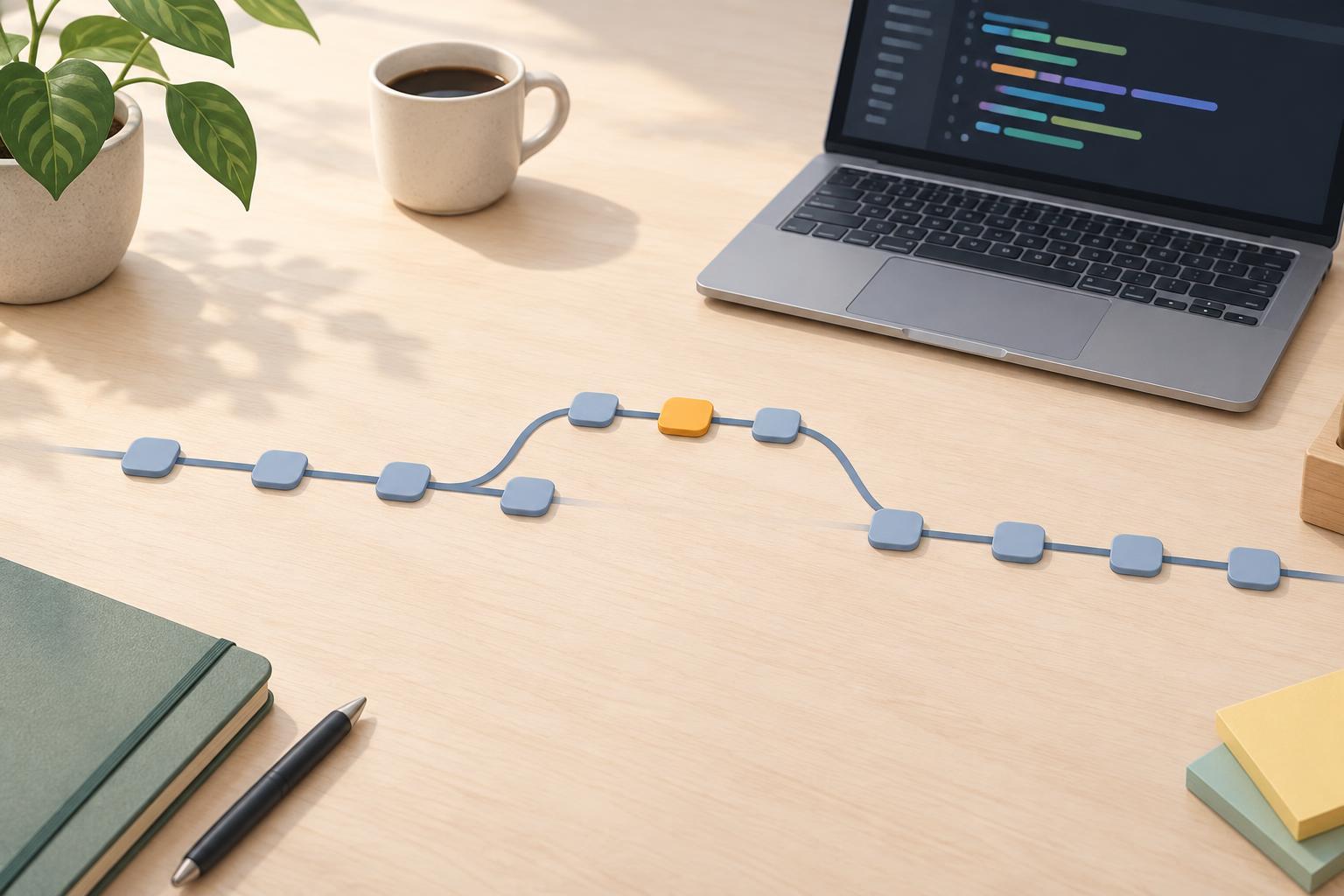
A branch lets you work on a change without adding unfinished commits to your main line of work. This guide uses a branch named main as the starting point and a short-lived branch named add-contact-page for the change. Replace those names if your project uses different ones. You need a terminal, a Git repository with at least one commit, and Git 2.23 or newer for the git switch commands shown here. Run git --version to check your installed version.
Open a terminal in your repository and run git status. If it reports modified or untracked files, decide what to do with them before switching branches: commit work you want to keep, or set it aside using a method you understand. Starting with a clean working tree makes it easier to tell which changes belong to the new branch. Run git switch main to move to the starting branch. If you work with a shared remote repository, coordinate how your team updates main before branching; a local-only project needs no remote.
Create the branch and make your change
From main, run git switch -c add-contact-page. The -c option creates the branch and switches to it in one step. Run git branch --show-current to confirm that add-contact-page is active. Your files initially look the same as they did on main because the new branch starts at the same commit.
Make a small, focused change, such as adding a contact page to a practice website. Run the project’s usual checks, if it has any, and review what you changed with git diff. Then run git status to see which files Git knows have changed. Stage only the files that belong to this change, for example with git add contact.html. If you also edited a stylesheet, add that file explicitly. Using specific paths helps you avoid including an unrelated file by accident.
Run git diff --staged to review what you are about to save, then run git commit -m "Add contact page". A commit records the staged changes on your current branch. If you need to make a correction, edit the files, review and stage them, and make another commit. It is fine for a finished change to contain more than one commit.
Merge the finished branch into main
When the change is ready, run git status once more. Commit any remaining work you intend to include, and make sure you have reviewed the result. Then run git switch main followed by git merge add-contact-page. The order matters: Git merges the named branch into the branch you currently have checked out, so you must be on main to bring the change into main.
If main has not changed since you created the branch, Git may report a fast-forward merge. That means it moved main forward to include the branch’s commits without creating a separate merge commit. If main has gained other commits, Git may create a merge commit instead. Either outcome can be normal. Run git status and inspect the changed files or run the project’s checks to confirm that the combined result behaves as expected. To see recent commits, run git log --oneline -5.
If Git reports a conflict
A conflict can occur when Git cannot automatically combine changes, often because both branches edited the same part of a file. Git will name the affected files. Run git status to find them, then open each file and look for conflict markers beginning with <<<<<<<, separating alternatives with =======, and ending with >>>>>>>. Read both versions and edit the file into the single final version you want. Remove all the markers, save the file, and run any relevant checks.
Stage each resolved file with git add followed by its path. Run git status again; once every conflict is resolved and staged, run git commit if Git tells you the merge still needs to be completed. If you want to stop the merge instead, git merge --abort can generally return you to the pre-merge state, provided the merge is still in progress. That is another reason to begin with a clean working tree.
Clean up the branch
After you have confirmed the merge on main, run git branch -d add-contact-page to remove the local topic branch. The -d option is a useful safeguard because Git refuses to delete a branch it considers unmerged. Deleting the branch name does not remove the commits that are now part of main.
If your project uses a remote, local branching and merging do not publish your work automatically. Your team may use a review process instead of merging directly into main; follow that process when it applies. For a local practice repository, the core habit is simple: branch from a known starting point, make and review a focused commit, merge from the destination branch, and verify the result before cleaning up.