From an address to a connection
When you enter a web address or follow a link, the browser first works out which resource you want. A URL can identify a site, a path on that site and other details, such as a query. The browser may also check whether it already has a usable copy of the resource. Not every visit requires a fresh download.
If the browser needs to contact the site, it must find the server’s network address. The Domain Name System, or DNS, helps translate a domain name into an IP address. The answer may already be cached, or the browser may need to ask for it. The browser then establishes a connection. For an HTTPS address, that process includes setting up an encrypted connection and checking the site’s certificate. These steps happen before the browser can receive the page’s content.
The browser requests a document
The browser sends an HTTP request for the resource, often an HTML document. A request includes a method, commonly GET for loading a page, and may include headers that give the server useful context. The server sends an HTTP response containing a status code, headers and, when appropriate, a response body. A successful response might contain HTML; another response might redirect the browser to a different address or report that the resource was not found.
The response headers can tell the browser what kind of content it received and how it may be cached. A page can also depend on files beyond its initial HTML document. If the HTML refers to a stylesheet, script, image or font, the browser may request those resources too. Some files may come from the browser’s cache, while others may be fetched from the network. This is why a page load is often a collection of requests rather than one download.
HTML, CSS and JavaScript give the page its shape and behavior
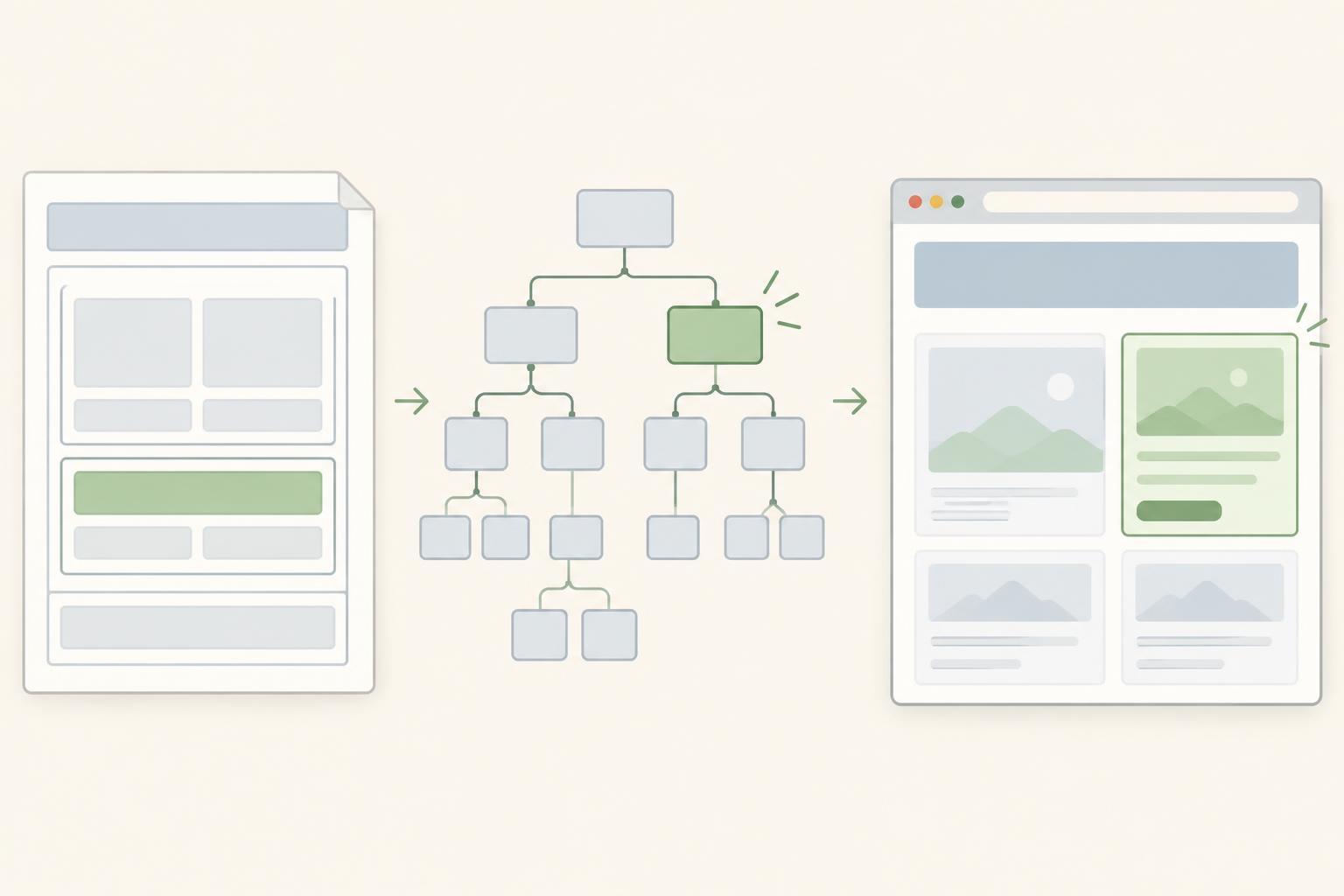
As HTML arrives, the browser parses it into a structure called the Document Object Model, or DOM. The DOM represents elements such as headings, links, forms and paragraphs in a way the browser and scripts can work with. The browser does not necessarily wait for every file to finish downloading before it begins this work.
CSS describes how those elements should look. The browser parses CSS rules and works out which styles apply. JavaScript can add behavior, change the DOM, request more data or respond to a click. A script can also affect the timing of page construction: depending on how it is included, the browser may pause HTML parsing to run it. Modern pages vary widely, so there is no single fixed order in which every image, style and script finishes loading.
The browser draws what you see
Once the browser has enough structure and styling information, it calculates layout: the size and position of visible elements. It then paints their visual details, such as text, colors and borders, and combines the results for display. This is usually called rendering. You may see part of a page before all its images or other resources have arrived.
The work can continue after the first display. An image loading, a window resize, a font becoming available or a script changing an element may require the browser to update the layout or redraw part of the page. JavaScript may also request new data without navigating to a new document. That is why a page can keep changing after it first appears. The browser’s back-forward cache, ordinary resource caching and other optimizations can make later visits follow a different path from the first one.
See the process for yourself
You can explore these steps with any browser that includes built-in Developer Tools; no additional software or specific browser version is required. Open a page, open Developer Tools and find the Network panel. Reload the page with that panel open. You should see requests for the document and, depending on the page, for stylesheets, scripts, images or fonts. Select a request to inspect its status, response headers and timing information.
Try comparing the first load with a second load. If a resource is served from a cache, its network activity may differ. You can also inspect the Elements panel to see the DOM and applied styles. These tools help separate common questions: Did the browser request the right file? Did the server respond successfully? Did the HTML contain the expected element? Did CSS hide it, or did a script change it? Following that sequence turns a mysterious blank space or missing image into a smaller, testable problem.